MrDoc Deployment Guide
Simple Run
Deployment guide
Deploy MrDoc with Docker (recommended)
Docker image deployment
Deploy with Docker Compose
Manage Docker containers
Deploy MrDoc on Linux
Deploy MrDoc with Nginx + uWSGI
One-click deployment script (no longer maintained)
Baota Panel "Python Project Manager 1.9" deployment
Official Docker image deployment
Deploy MrDoc on Windows
Deploy with Waitress
Windows deployment panel
NAS deployment
Deploying on Zspace NAS
Feiniu FnOS deployment
Update upgrade notes - Open Source Edition
Update upgrade notes - Pro edition
System dependency library description
Migrating native deployment to Docker deployment
Configuration guide
Custom database configuration
Configure PDF generation for collections
Full-text search configuration
Using MySQL database with Docker
Configuring MySQL database to support emoji
Host static file resources with Nginx
Enable SSL with Nginx / Set up HTTPS
Configure reverse proxy/bind domain with Nginx
Nginx handling local video playback
Custom uWSGI configuration
Configuration file description
Data security
Site data backup/site migration
Professional data export and import
Open source data export and import
Data migration from open source to professional edition
Frequently asked questions
What to do if SQLite3 version error occurs?
What if the admin forgets the password?
Error: SyntaxError: invalid syntax
MySQLdb._exceptions.OperationalError: (1366, "Incorrect string value:")
Baota Panel "Python Project Manager" virtual environment usage issues.
View logs/log storage location
403 errors on POST/PUT requests for login, publish, upload, and edit under Nginx/HTTPS
What if I can't access the backend after switching the default login method?
Troubleshooting
Tip sponsorship records
MrDoc deployment server configuration recommendations
Powered by MrDoc Pro
-
+
home
Windows deployment panel
# Windows Deployment Panel > i For download links and update news, see: https://mrdoc.pro/doc/46151/ **Windows Deployment Panel** is a desktop tool for one-click deployment and management of the [MrDoc](https://mrdoc.pro/) knowledge base system on Windows. It comes with a built-in **Python 3.11 runtime** and **MinGit**, so you **do not need to install Python, Git, or any other dependencies on your machine**. Through the graphical interface, you can complete all operations including source code retrieval, database initialization, service startup, and background task management. - Current version: v1.0.0 - Supported systems: Windows 8.1 and above (64-bit) - No installation required: no runtime libraries other than Python / Git / database --- ## 1. Installation and First Launch ### 1.1 Distribution Package Contents Extract the software archive you received to any directory to get the following directory structure: ``` MrDocPanel\ ├─ MrDocPanel.exe Panel main program └─ res\ Program resource directory (must be placed together with the exe) ├─ python311.zip Python 3.11.3 + all MrDoc dependencies ├─ mingit.zip MinGit 2.43 (portable Git) ├─ logo.ico └─ logo.png ``` > d **Important**: The `res` folder must be located in the same directory as `MrDocPanelAardio.exe`. Please extract and move the whole package together; do not copy the exe file alone. ### 1.2 Installation Location Requirements Please extract the program to a **directory with write permissions**, for example: - Recommended: `D:\MrDocPanel\` - Not recommended: `C:\Program Files\` (this directory is protected by the system, and the panel may not be able to write the runtime environment and project files) After the panel runs, it will create the following content in its own directory (see Section 9 for details): | Directory / File | Purpose | | --- | --- | | `runtime\` | Extracted Python and Git runtime environment | | `projects\` | Default project (source code) storage directory | | `config.json` | Panel configuration (auto-generated) | | `update_cache\` | Update package download cache | ### 1.3 First Launch 1. Double-click `MrDocPanel.exe` to launch the panel; 2. The panel will automatically detect the runtime environment. When it detects that initialization has not been performed, a prompt box will appear: - Click "**Initialize Now**": extract Python and Git (about 1~2 minutes, only needed once); - Click "**Later**": skip, and you can complete it at any time later by clicking the "**Initialize Environment**" button at the bottom; 3. After initialization is complete, the status bar at the bottom shows "Runtime environment: Python 3.11.3 ready · Git ready", and you can begin deployment. --- ## 2. Interface Overview 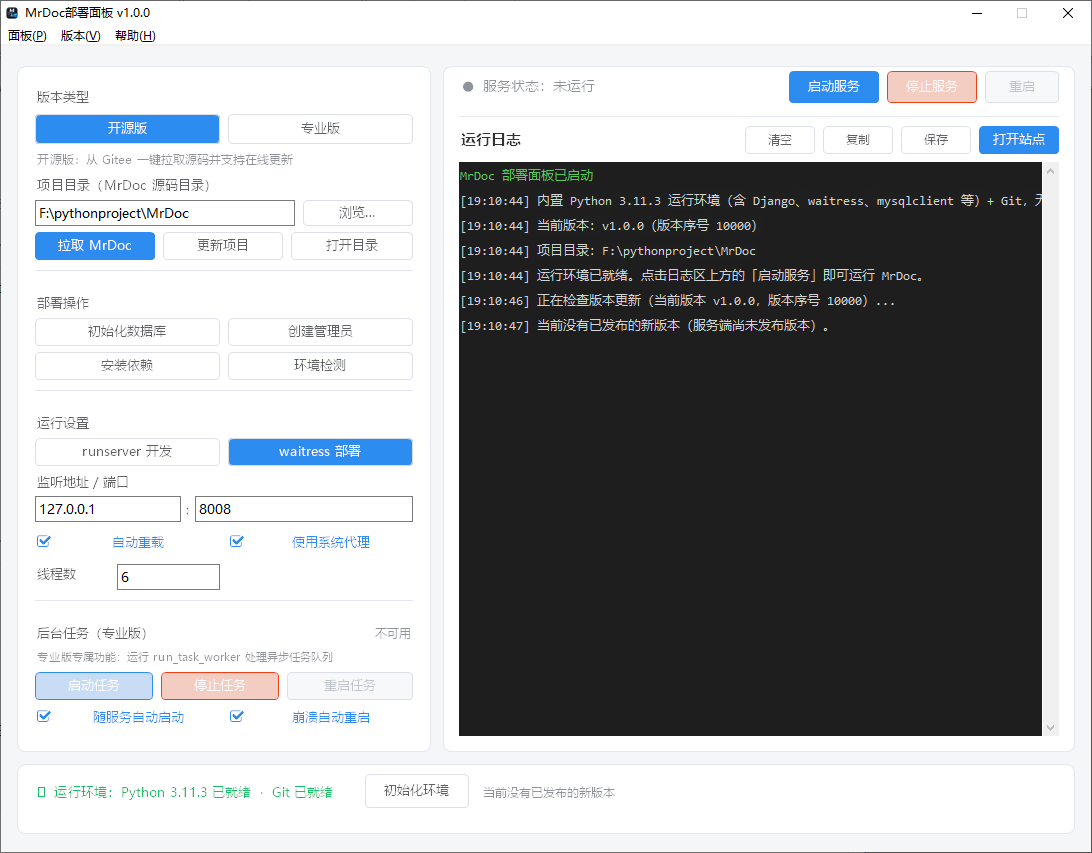 | Area | Description | | --- | --- | | Left column | Deployment-related settings such as edition type, project directory, deployment operations, runtime settings, and background tasks | | Right column | Service status and control buttons, real-time runtime logs | | Bottom bar | Runtime environment status, "Initialize Environment" button, readiness status, version number | | Menu bar | Three menus: Panel / Version / Help (see Section 6 for details) | --- ## 3. Quick Start ### 3.1 Open Source Edition Deployment (from scratch to accessing the site) 1. **Select edition type**: Click the "**Open Source Edition**" button in the left column; 2. **Pull source code**: Click "**Pull MrDoc**", and the panel will use the built-in Git to download the MrDoc source code from Gitee to the project directory (default `panel directory\projects\MrDoc`); 3. **Initialize database**: Click "**Initialize Database**" and wait for the log to indicate completion; 4. **Create administrator**: Click "**Create Administrator**" and enter the account and password as prompted; 5. **Start service**: Click "**Start Service**" in the right column; the status light turning green indicates it is running; 6. **Access the site**: Click "**Open Site**", and the browser will open `http://listen address:port`; 7. (Optional) When a new version of the source code is available, click "**Update Project**" to upgrade online (`git pull`). ### 3.2 Pro Edition Deployment > The Pro edition requires that you **already have the official Pro edition source code** (the extracted directory). 1. **Select edition type**: Click the "**Pro Edition**" button in the left column; 2. **Specify source directory**: Click "**Browse…**" to select the extracted Pro edition source directory (you should be able to see `manage.py` in the directory); - When authorization verification passes, the log shows "Pro edition authorization verification passed"; - When it does not pass, the panel will clearly indicate the reason (such as license.json not found, invalid signature, etc.), and deployment and runtime operations will be unavailable; - Please use the **new official Pro edition source code** (including the authorization verification module); older source code is not supported, and the panel will block it and explain; 4. **Initialize database** → **Create administrator**: same as the open source edition; 5. **Start service** → **Open site**: same as the open source edition; 6. **Start background task** (optional): In the "Background Task" area, click "**Start Task**" to run the asynchronous task queue `run_task_worker` (see Section 5.5 for details). > The Pro edition does not provide online source code pulling/updating. To upgrade the source code, obtain a new version from official channels and then specify the directory again. ### 3.3 Daily Usage Recommendations - **Close button ≠ exit**: Clicking [X] in the upper right corner of the window only **minimizes to the system tray**, and the site service continues to run; - To exit completely, use the menu bar "**Panel → Exit**" or the tray right-click menu "**Exit**"; - The progress and results of each deployment operation are printed in real time in the log area on the right. When encountering problems, check the logs first. --- ## 4. Feature Details (Left Column) ### 4.1 Edition Type | Button | Description | | --- | --- | | **Open Source Edition** | One-click pull of the MrDoc open source edition source code from Gitee, supporting online upgrades via "Update Project" | | **Pro Edition** | Specify a local extracted official Pro edition source directory; requires an authorization file and supports the background task queue | ### 4.2 Project Directory | Button | Description | | --- | --- | | **Pull MrDoc** | (Open source edition) Clone the MrDoc source code from Gitee to the project directory | | **Update Project** | (Open source edition) Execute `git pull` to update the source code to the latest version | | **Open Directory** | Open the current project directory in File Explorer | | **Browse…** | Manually specify the project directory (required for the Pro edition; the open source edition can also point to an existing source directory) | ### 4.3 Deployment Operations | Button | Description | | --- | --- | | **Initialize Database** | Create/upgrade the database table structure (required for first deployment; can also be executed again after source code upgrades) | | **Create Administrator** | Interactively create a backend administrator account | | **Install Dependencies** | Execute `pip install` according to the project's `requirements.txt`; dependencies already satisfied are automatically skipped and the built-in environment will not be damaged | | **Environment Check** | One-click health check: checks the runtime environment, project directory, manage.py, dependencies, etc., and gives a conclusion | ### 4.4 Runtime Settings | Setting | Description | | --- | --- | | **runserver development** | Django's built-in server, supports auto-reload, suitable for development and debugging | | **waitress deployment** | Multi-threaded production-grade server, suitable for formal deployment | | **Listen address / port** | Default `127.0.0.1:8000`; for LAN access, it can be changed to `0.0.0.0` | | **Auto-reload** | Only effective in runserver mode: automatically restart the service after code changes | | **Use system proxy** | When checked, pulling/updating source code and installing dependencies will pass the system HTTP proxy to git and pip | | **Threads** | Number of concurrent threads in waitress mode, default 6 | ### 4.5 Background Task (Pro Edition Exclusive) The asynchronous task queue of the Pro edition requires a resident process `python manage.py run_task_worker`. The panel provides complete running, monitoring, and management: | Capability | Description | | --- | --- | | **Run** | The three buttons "Start Task / Stop Task / Restart Task" are controlled independently; after checking "Auto-start with service", the background task is automatically started when the service starts and automatically stopped when the service stops | | **Monitor** | Real-time status (running/not running/exited), runtime duration, process PID, last activity time; task output is mixed into the main log area with the `[Task]` prefix | | **Auto-restart** | After checking "Auto-restart on crash", if the process exits unexpectedly it will automatically restart: interval 3 seconds, maximum 5 times; after running stably for 60 seconds, the count is automatically reset; after exceeding the limit, restarting stops and a warning is printed | > If the "Background Task" area shows "Unavailable": ① the current edition is the open source edition (this feature is exclusive to the Pro edition); or ② `app_task/management/commands/run_task_worker.py` was not found in the Pro edition source directory. See the panel prompt text for the specific reason. --- ## 5. Service Control and Logs (Right Column) ### 5.1 Service Control | Button | Description | | --- | --- | | **Start Service** | Start the site service with the current runtime settings; the status light turns green | | **Stop Service** | Stop the service (if "Auto-start with service" is checked, the background task is also stopped) | | **Restart** | Restart the site service | | **Open Site** | Open `http://listen address:port` in the default browser | ### 5.2 Runtime Logs - The output of the service, background tasks, and deployment operations is all printed in real time in the log area; - The output of background tasks has the "**[Task]**" prefix for easy distinction; - Logs are colored by level: normal / success (green) / failure (red); - **Clear**: clear the current logs; **Copy**: copy all logs to the clipboard; **Save**: save the logs as a text file for easy problem reporting. --- ## 6. Menu Bar and System Tray ### 6.1 Menu Bar | Menu | Menu Items | | --- | --- | | **Panel (&P)** | Show main interface / Hide to tray / Open project directory / Initialize runtime environment / **Exit** | | **Version (&V)** | **Check for Updates** / Auto check for updates (checkable) / Current version (grayed out, for viewing only) | | **Help (&H)** | MrDoc official website / Gitee repository / About | ### 6.2 System Tray - **Close button = minimize to system tray**: the program continues to run in the background, and the service is not interrupted; - **Single-click the tray icon**: reopen the panel; - **Right-click the tray icon**: pop up a menu—Show main interface / Hide to tray / Check for updates / **Exit**; - When hidden to the tray for the first time, a balloon tip pops up once; - The hover tip of the tray icon reflects the status in real time, for example "MrDoc Deployment Panel v1.0.0 · Service running". ### 6.3 Exiting the Program Use the menu bar "**Panel → Exit**" or the tray menu "**Exit**": - After clicking, it prompts "Exiting the panel will stop the running site service and background tasks, and then exit the program"; - After confirmation, the panel will automatically stop all child processes (including the Django reloader and multiprocessing child processes), **leaving no residual processes**; - Clicking "Cancel" continues running. --- ## 7. Version Updates The panel has a built-in online update feature: | Capability | Description | | --- | --- | | **Check for Updates** | Menu "Version → Check for Updates" (or tray right-click "Check for Updates"); it also automatically checks silently at startup, which can be toggled via "Version → Auto check for updates" | | **Version Display** | The current version number is displayed in both the title bar and the bottom; during download, the bottom shows the percentage progress in real time | | **Update Prompt** | When a new version is found, a dialog box shows the new version number, update package size, and update notes; when the server marks it as a forced update, there will be a clear prompt | | **Download and Install** | Download in a background thread (does not block the interface); automatically identifies the update package type (ZIP / EXE), automatically replaces program files, and **automatically restarts the panel** | > During updates, `config.json`, `projects`, `runtime`, and `update_cache` are **automatically preserved**, and your project data, runtime environment, and configuration will not be overwritten. --- ## 8. Configuration File Description (config.json) After the panel runs for the first time, it automatically generates `config.json`. Settings in the interface are automatically saved to this file, and manual modification is generally not required. | Field | Description | | --- | --- | | `edition` | Current edition type: `oss` (open source edition) / `pro` (Pro edition) | | `project` | Project directory (MrDoc source directory) | | `mode` | Runtime mode: `runserver` / `waitress` | | `host` / `port` | Listen address and port | | `autoreload` | Auto-reload switch (runserver mode) | | `threads` | Number of waitress threads | | `useProxy` | Whether to pass the system proxy to git and pip | | `taskAutoStart` | Whether the background task automatically starts with the service | | `taskAutoRestart` | Whether the background task automatically restarts on crash | | `autoCheckUpdate` | Whether to automatically check for updates at startup | | `initialized` | Whether the runtime environment has been initialized | --- ## 9. Runtime Directory Structure After the panel has been running for some time, the complete structure of the program directory: ``` MrDocPanelAardio\ ├─ MrDocPanelAardio.exe Panel main program ├─ res\ Program resources (keep as is, do not delete) ├─ config.json Panel configuration (auto-generated) ├─ runtime\ Runtime environment (automatically extracted on first initialization) │ ├─ python311\ Python 3.11.3 + all dependencies │ └─ mingit\ MinGit 2.43 ├─ projects\ Default project directory │ └─ MrDoc\ Pulled open source edition source code └─ update_cache\ Update package download cache ``` > When backing up or migrating, simply copy the entire program directory; `projects\` and `config.json` are your data, > and `runtime\` can be deleted (it will be rebuilt by re-initialization on the next startup). --- ## 10. Frequently Asked Questions (FAQ) **Q1: When starting the service, it reports "manage.py not found in project directory"?** A: For the open source edition, first click "Pull MrDoc"; for the Pro edition, click "Browse…" to correctly specify the extracted source directory. **Q2: Other computers on the LAN cannot access the site?** A: Change the listen address to `0.0.0.0` and restart the service, and check whether Windows Firewall allows the panel program and the listening port. **Q3: How do I use a MySQL database?** A: The panel has built-in mysqlclient (the official Windows precompiled version, no additional client installation required). Modify `config/config.ini` in the project: ```ini [database] engine = mysql name = db_mrdoc user = mrdoc password = 123456 host = 127.0.0.1 port = 3306 ``` Then click "Initialize Database". **Q4: Will "Install Dependencies" damage the built-in Python environment?** A: No. This feature executes `pip install` according to the project's `requirements.txt`, and dependencies already satisfied (including mysqlclient) will be automatically skipped by pip. **Q5: The "Background Task" area shows "Unavailable"?** A: There are two possibilities: ① the current edition is the open source edition (this feature is exclusive to the Pro edition); ② `app_task/management/commands/run_task_worker.py` was not found in the Pro edition project directory. The panel will explain the specific reason in the prompt text. **Q6: What should I do if the background task keeps restarting?** A: The panel automatically restarts at most 5 times (interval 3 seconds), after which it stops restarting and prints a warning. Please check the content with the "[Task]" prefix in the logs to troubleshoot the cause; after fixing it, clicking "Start Task" again will reset the count. **Q7: Pulling/updating source code is very slow?** A: Check "Use system proxy", and the panel will pass the system HTTP proxy to git and pip. **Q8: The Pro edition prompts "Authorization verification failed"?** A: Please confirm that the authorization file `license.json` has been placed in the `license` folder of the **project directory** (the Pro edition source directory), and that you are using the new official Pro edition source code. If it still cannot pass, export the logs via "Save" and contact technical support. **Q9: How do I re-extract the runtime environment?** A: Click the "Initialize Environment" button at the bottom. After confirmation, it will delete and re-extract (this will clear additionally installed dependencies). **Q10: Where did the program go after clicking [X]?** A: It was minimized to the system tray, and the service is still running. Double-click the tray icon to bring back the panel; to exit completely, use the menu "Panel → Exit" or the tray right-click "Exit". **Q11: Will updating the panel overwrite my project data?** A: No. The update only replaces program files, and `config.json`, `projects`, `runtime`, and `update_cache` are all fully preserved. **Q12: "Check for Updates" says "There is currently no published new version"?** A: This means the update server has not yet published a version for this product (or there is no installation package for this platform), which is a normal state. --- ## 11. Troubleshooting Quick Reference | Symptom | Troubleshooting Steps | | --- | --- | | Double-clicking the exe does nothing or reports an error | Confirm that the `res` folder is in the same directory as the exe; confirm that the program is in a writable directory (do not place it in Program Files) | | Service fails to start | Check the red errors in the log area; check whether the port is occupied (change the port and retry); click "Environment Check" to confirm the environment is ready | | The page cannot be opened | Confirm that the service status light is green; confirm that the address and port match the settings; after switching to `0.0.0.0` listening, access via `http://local IP:port` | | Database initialization fails | Perform "Environment Check" first; when using MySQL, check `config/config.ini` and database reachability | | Pulling source code fails | Check "Use system proxy" and retry; confirm that the network can access gitee.com | | Pro edition buttons are disabled | Authorization verification failed; handle according to Q8 | | Other exceptions | Use "Save" in the log area to export the log file, and report it to technical support along with the operation steps | --- *This document corresponds to panel version v1.0.0. If features and interface are updated, please refer to the actual program interface and the accompanying instructions.*
mrdoc
Sept. 29, 2026, 2:56 p.m.
Forward
Favorites
Last
Next
Scan the QR Code
Copy link
Scan the QR code to share.
Copy link
share
link
type
password
Update password
Validity period
Markdown file
Word document
PDF document (print)