MrDoc Deployment Guide
Simple Run
Deployment guide
Deploy MrDoc with Docker (recommended)
Docker image deployment
Deploy with Docker Compose
Manage Docker containers
Deploy MrDoc on Linux
Deploy MrDoc with Nginx + uWSGI
One-click deployment script (no longer maintained)
Baota Panel "Python Project Manager 1.9" deployment
Official Docker image deployment
Deploy MrDoc on Windows
Deploy with Waitress
Windows deployment panel
NAS deployment
Deploying on Zspace NAS
Feiniu FnOS deployment
Update upgrade notes - Open Source Edition
Update upgrade notes - Pro edition
System dependency library description
Migrating native deployment to Docker deployment
Configuration guide
Custom database configuration
Configure PDF generation for collections
Full-text search configuration
Using MySQL database with Docker
Configuring MySQL database to support emoji
Host static file resources with Nginx
Enable SSL with Nginx / Set up HTTPS
Configure reverse proxy/bind domain with Nginx
Nginx handling local video playback
Custom uWSGI configuration
Configuration file description
Data security
Site data backup/site migration
Professional data export and import
Open source data export and import
Data migration from open source to professional edition
Frequently asked questions
What to do if SQLite3 version error occurs?
What if the admin forgets the password?
Error: SyntaxError: invalid syntax
MySQLdb._exceptions.OperationalError: (1366, "Incorrect string value:")
Baota Panel "Python Project Manager" virtual environment usage issues.
View logs/log storage location
403 errors on POST/PUT requests for login, publish, upload, and edit under Nginx/HTTPS
What if I can't access the backend after switching the default login method?
Troubleshooting
Tip sponsorship records
MrDoc deployment server configuration recommendations
Powered by MrDoc Pro
-
+
home
Baota Panel "Python Project Manager 1.9" deployment
# Deployment with Baota Panel "Python Project Manager 1.9" > d If you are unfamiliar with Linux operations and usage, unfamiliar with English, and cannot use translation software to view, translate, and understand system prompts, logs, etc., please refer to [《Docker Deployment》](https://doc.mrdoc.pro/doc/3958/) > d If you encounter errors such as "SQLite database version...", please refer to [《Upgrade sqlite3》](https://doc.mrdoc.pro/doc/206/) > d This document applies to Baota Panel "Python Project Manager" version 1.9. If the installed "Python Project Manager" is version 2.0, please refer to [《Baota Panel Python Manager 2.0 Installation of MrDoc》](https://blog.csdn.net/debj031634/article/details/124080640) > d Docker deployment is recommended, please refer to [《Docker Deployment》](https://doc.mrdoc.pro/doc/3958/) ## 1. Install System Dependency Libraries The operation of MrDoc depends on some system software. To ensure that subsequent deployment does not encounter problems, please first ensure that the required dependency software is installed on the system: See: https://doc.mrdoc.pro/doc/3558/ ## 2. Download Project Source Code Download the MrDoc source code to the server via git clone. Click the "Files" menu and enter the www/wwwroot/ directory. 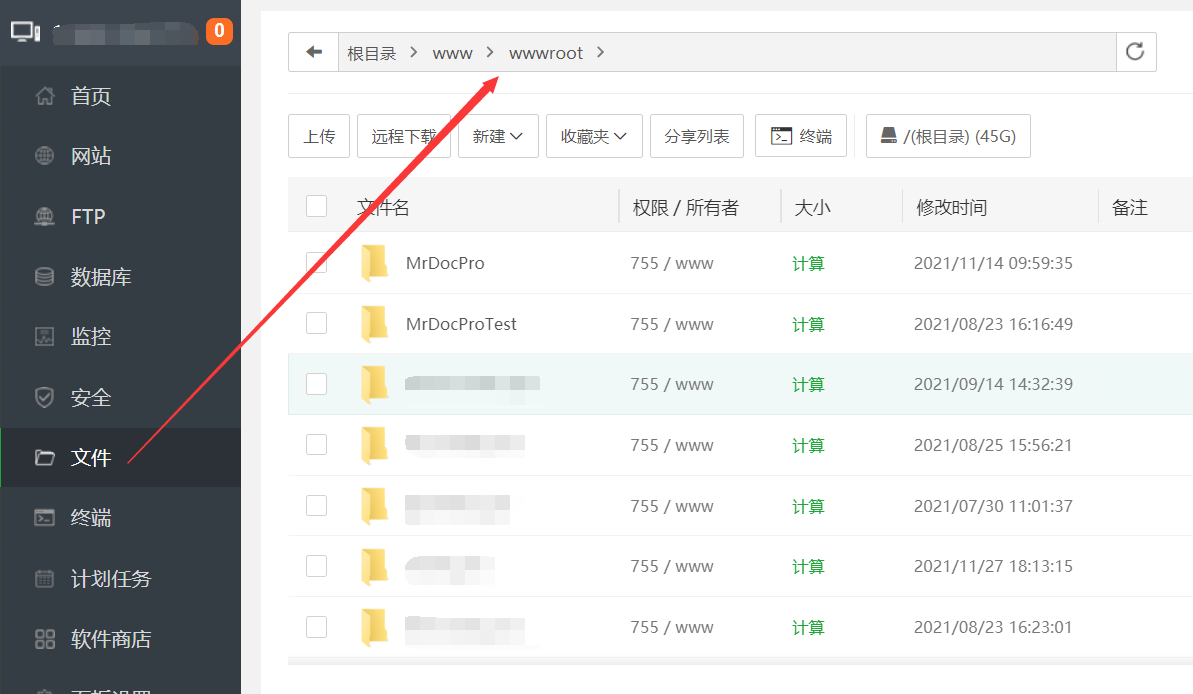 Click the "Terminal" button to open a command-line terminal, and enter the following command according to your edition: ### MrDoc Open Source Edition ``` git clone https://gitee.com/zmister/MrDoc.git ``` ### MrDoc Pro Edition ``` git clone https://{username}:{password}@git.mrdoc.pro/MrDoc/MrDocPro.git ``` 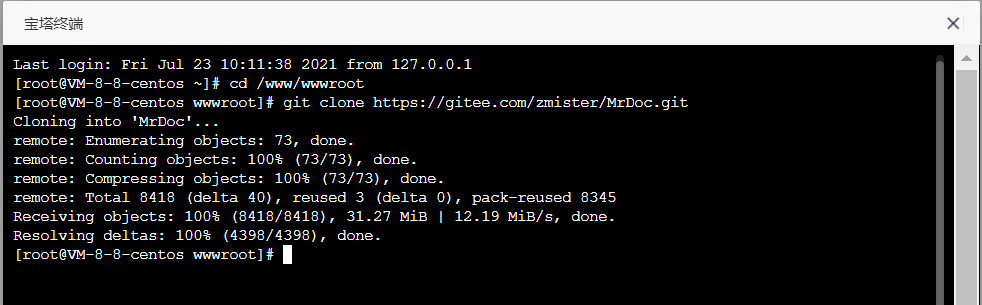 After the pull is complete, you can see that the MrDoc project code has been obtained in the directory: 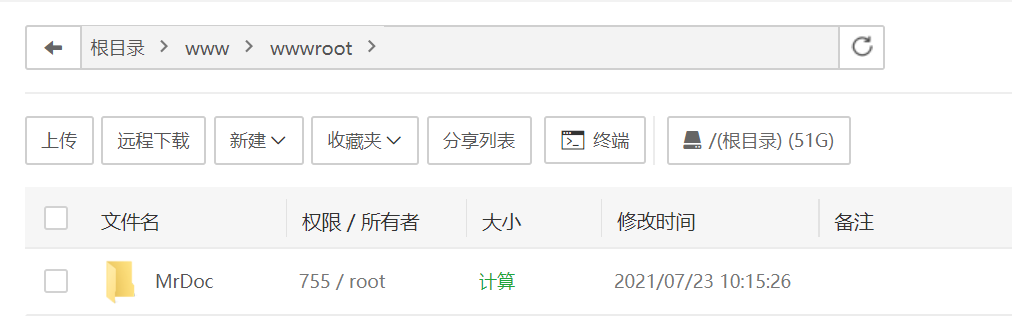 ## 3. Install Python Project Manager On the home page, search for and install "Python Project Manager" in the "Software Store" of the Baota Panel. 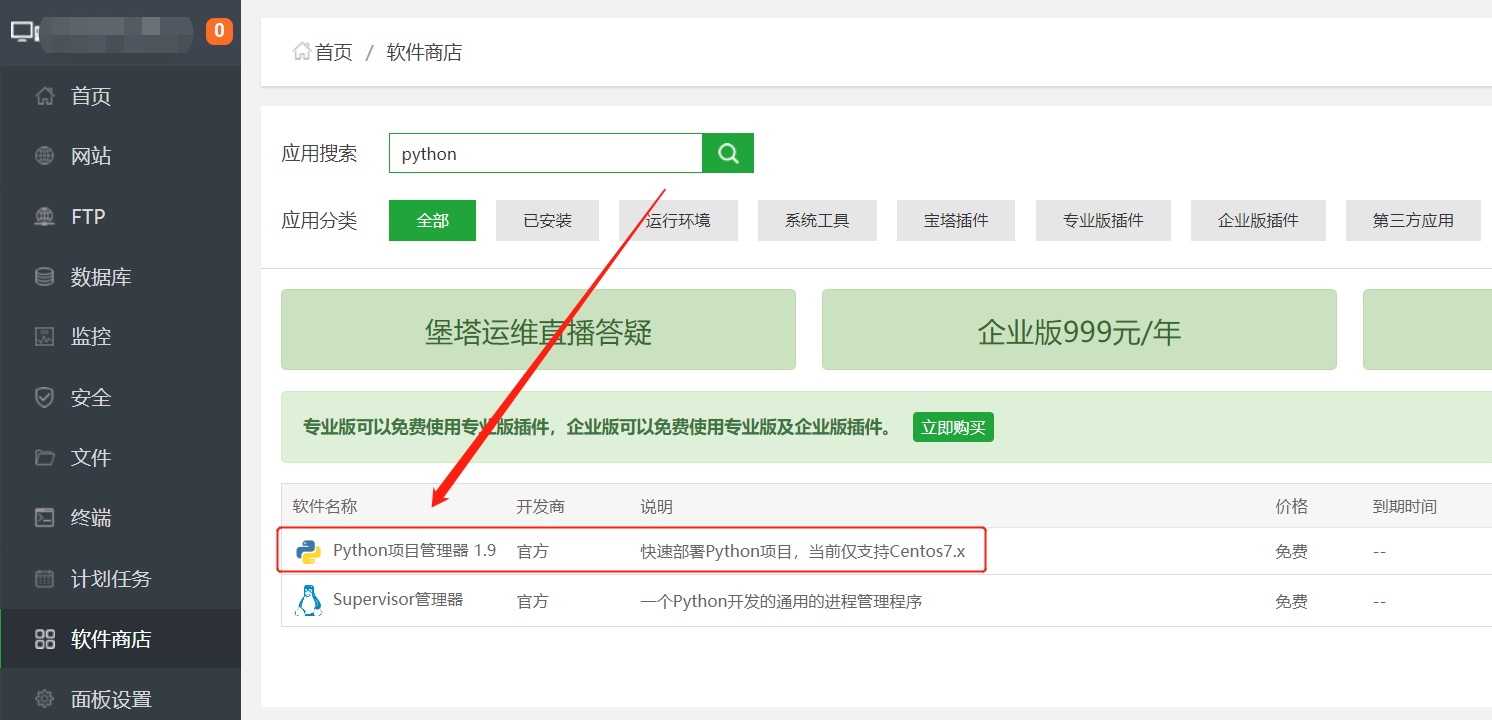 After installation is complete, click it, and a pop-up window for Python Project Manager will be displayed: 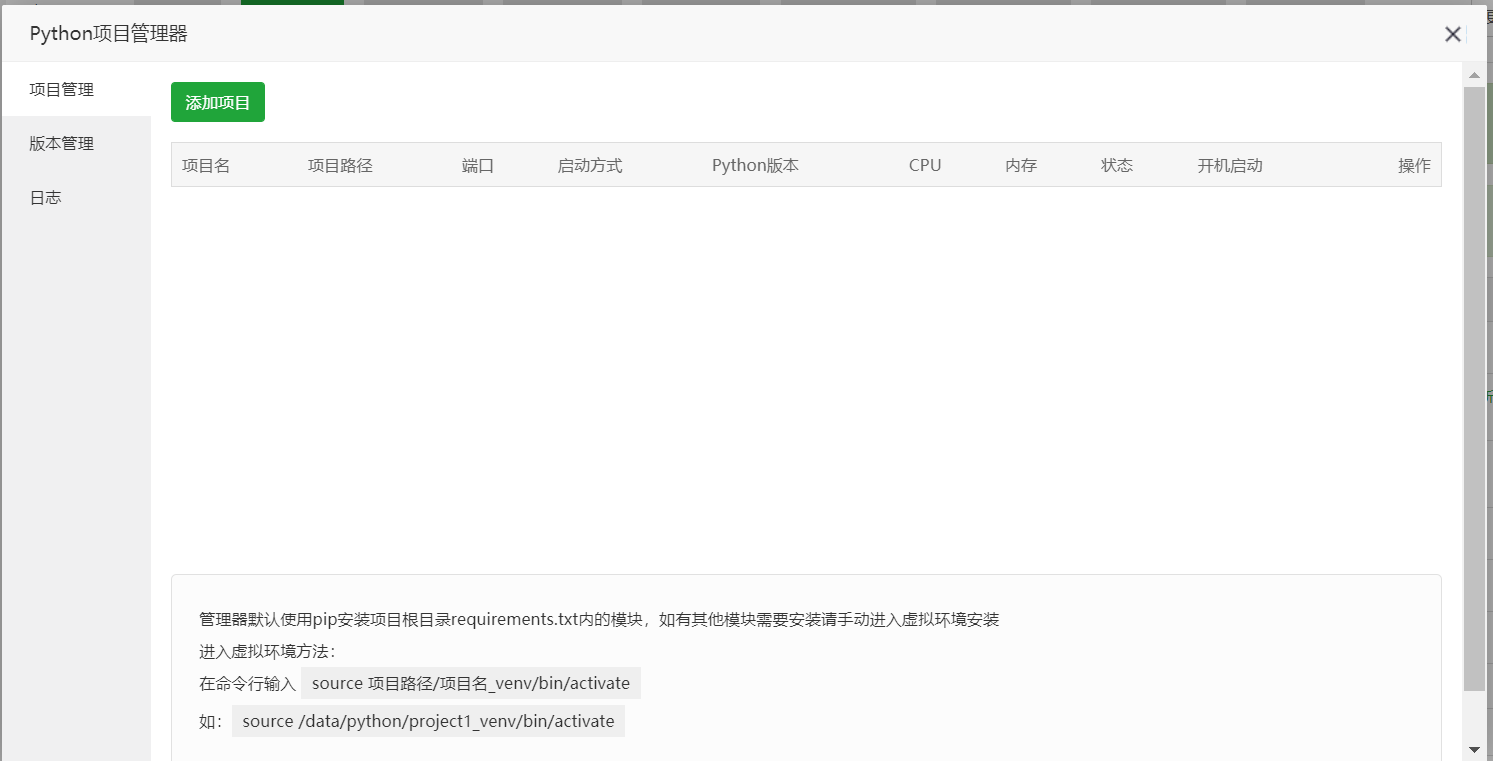 Among them: - "Project Management" is the list of all our current Python projects. - "Version Management" is used to manage Python versions. We can install different Python versions here. - "Logs" is used to view the running logs of the current project. If no Python version has been installed yet, we can select a version to install: 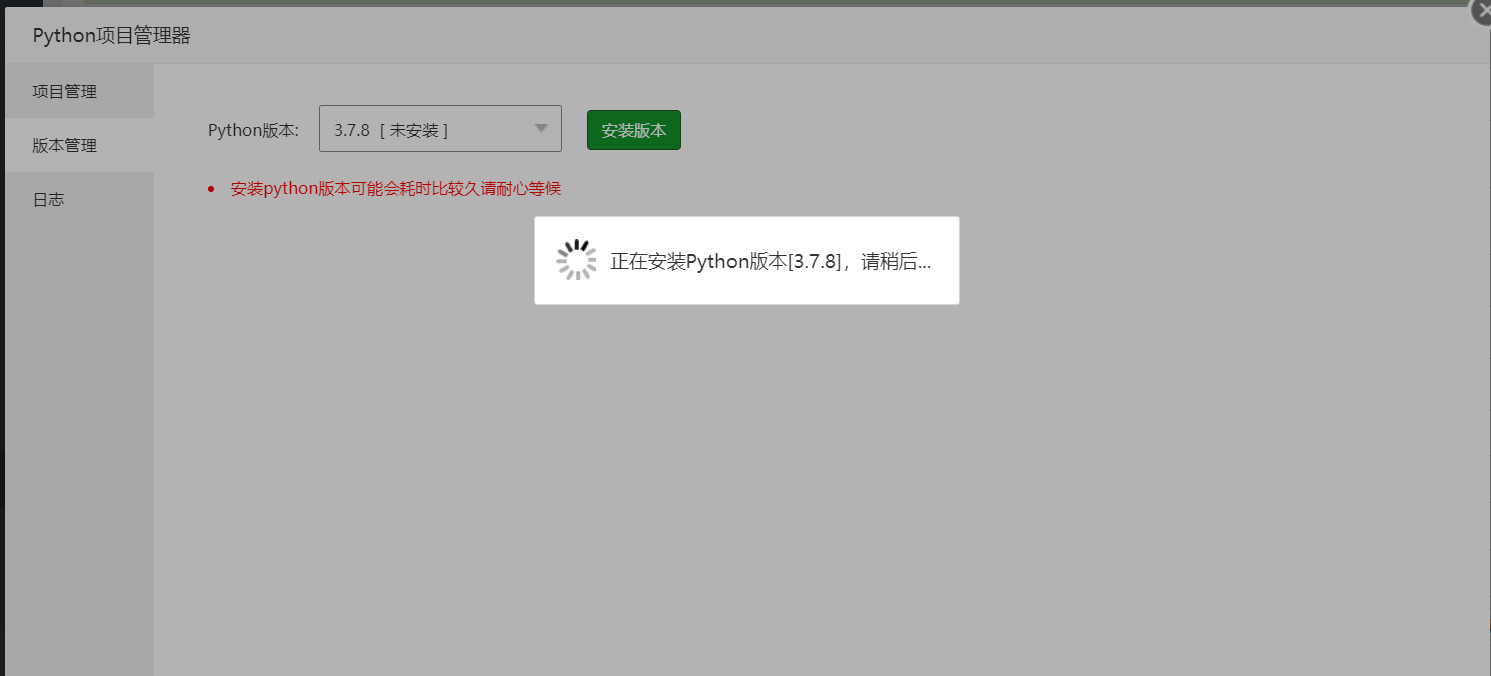 ## 4. Add Project After completing the above two steps, we can begin deploying the project. Click "Add Project" on "Project Management", and a form pop-up will appear for configuring project information: > d The Python version must be 3.6 or above. 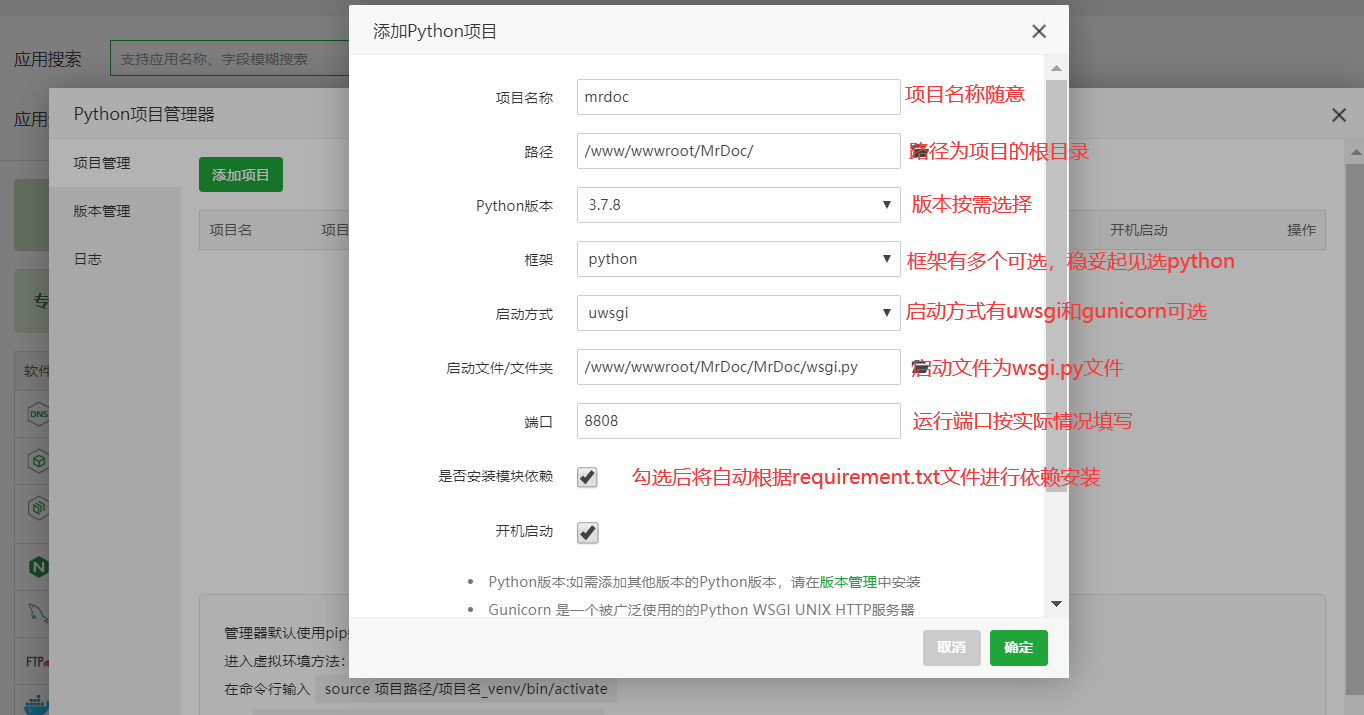 After configuration is complete, click Confirm, and the dependency modules will be installed and deployed. ## 5. Create Administrator Account Click the "Files" menu, enter the location where the MrDoc code is located, and click the "Terminal" button to open the terminal interface pop-up: 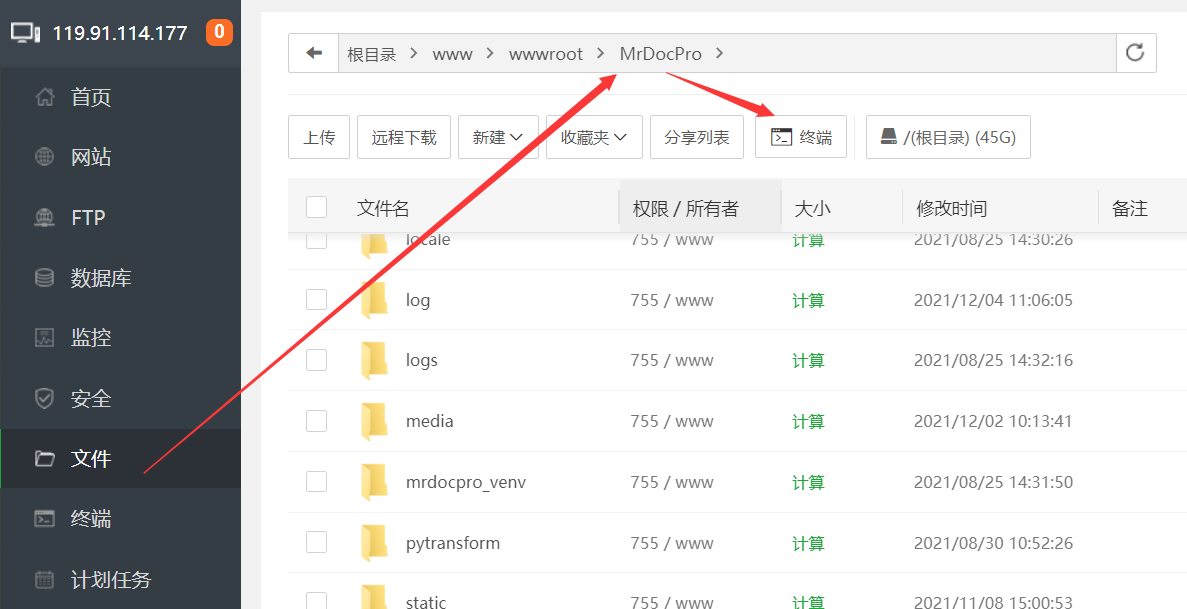 In the terminal, execute the following command to activate the Python virtual environment of the current project: ``` source ./{MrDoc project name}_venv/bin/activate ``` 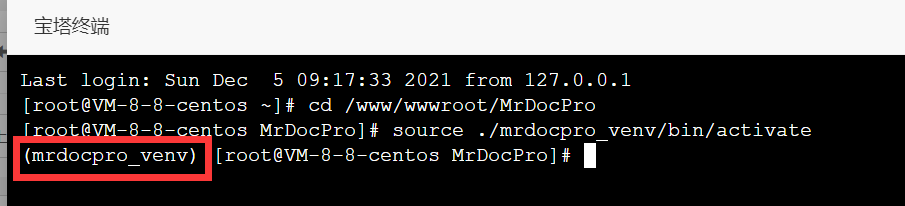 Next, execute the database migration commands: ``` python manage.py makemigrations ``` and ``` python manage.py migrate ``` Finally, output the command to create an administrator account: ``` python manage.py createsuperuser ``` Follow the prompts to enter the username, email address, and password (the password will not be displayed, and must be entered twice; press Enter after entering it). The complete steps above are shown in the following figure: 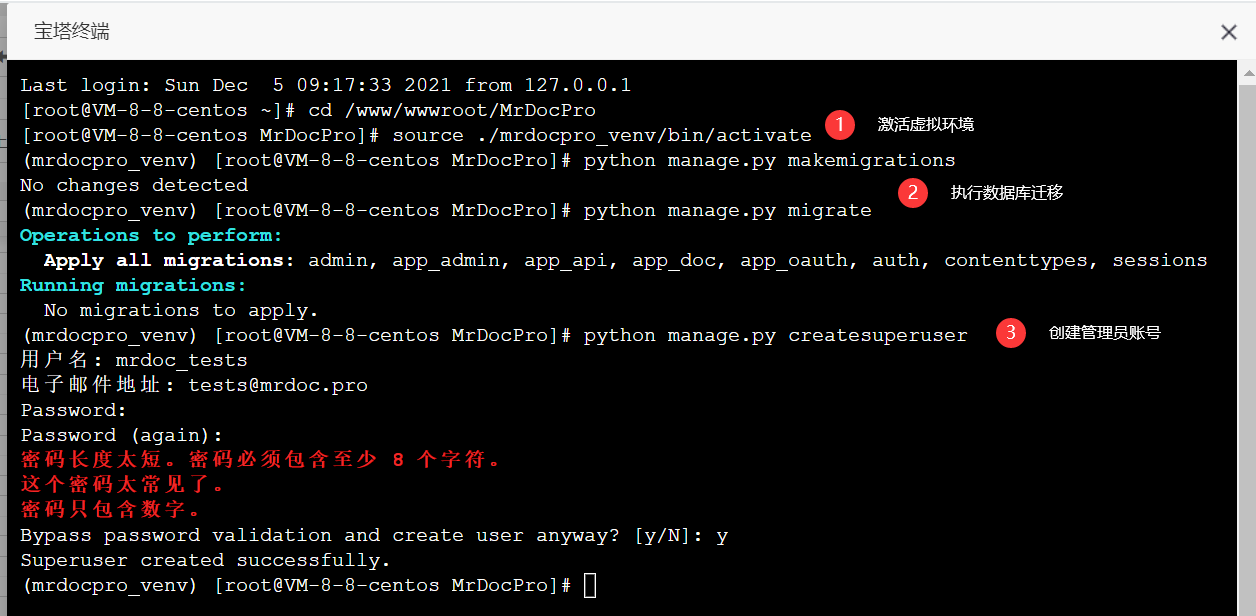 After completing the above operations, return to "Python Project Manager" and restart the project:  After the restart is complete, you can access it via `ip:port`. > d The port must be allowed by the security group or firewall. ## 6. Bind Domain Name After the project is deployed, the project just added will appear in the project management list. 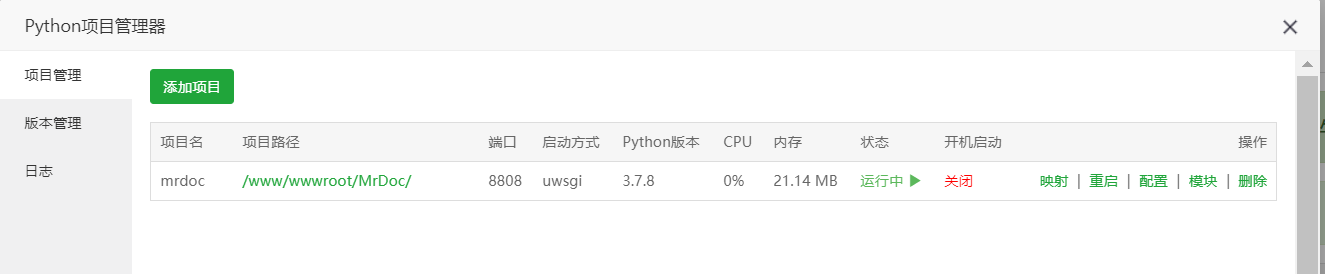 If you need to bind a domain name, we can click the "Mapping" button, and an input box will pop up for us to enter the domain name to be mapped: 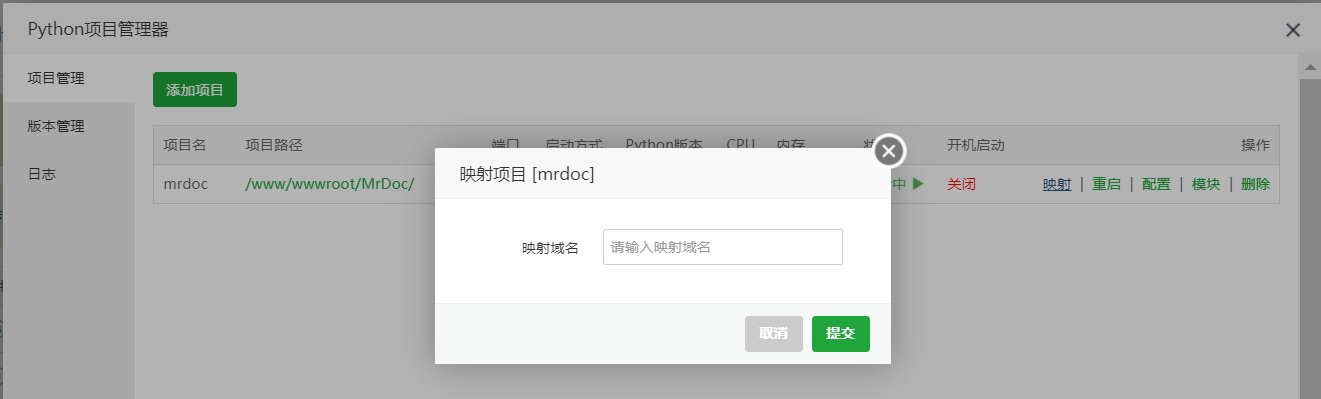 After clicking "Confirm", we can access the project just deployed through the domain name. ## 7. Set HTTPS If you need to enable https access for the domain name, please click the "Settings" link in the column corresponding to the domain name in the "Website" menu:  According to your certificate type, configure the certificate in the corresponding tab: 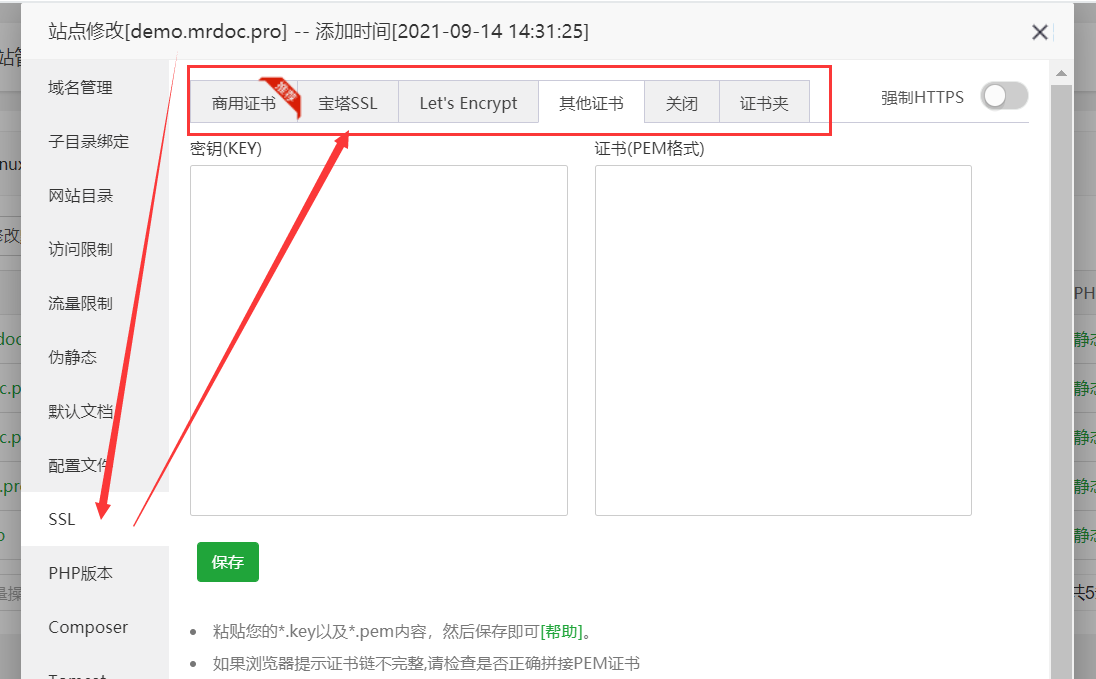
mrdoc
Sept. 29, 2026, 6:34 p.m.
Forward
Favorites
Last
Next
Scan the QR Code
Copy link
Scan the QR code to share.
Copy link
share
link
type
password
Update password
Validity period
Markdown file
Word document
PDF document (print)