MrDoc Deployment Guide
Simple Run
Deployment guide
Deploy MrDoc with Docker (recommended)
Docker image deployment
Deploy with Docker Compose
Manage Docker containers
Deploy MrDoc on Linux
Deploy MrDoc with Nginx + uWSGI
One-click deployment script (no longer maintained)
Baota Panel "Python Project Manager 1.9" deployment
Official Docker image deployment
Deploy MrDoc on Windows
Deploy with Waitress
Windows deployment panel
NAS deployment
Deploying on Zspace NAS
Feiniu FnOS deployment
Update upgrade notes - Open Source Edition
Update upgrade notes - Pro edition
System dependency library description
Migrating native deployment to Docker deployment
Configuration guide
Custom database configuration
Configure PDF generation for collections
Full-text search configuration
Using MySQL database with Docker
Configuring MySQL database to support emoji
Host static file resources with Nginx
Enable SSL with Nginx / Set up HTTPS
Configure reverse proxy/bind domain with Nginx
Nginx handling local video playback
Custom uWSGI configuration
Configuration file description
Data security
Site data backup/site migration
Professional data export and import
Open source data export and import
Data migration from open source to professional edition
Frequently asked questions
What to do if SQLite3 version error occurs?
What if the admin forgets the password?
Error: SyntaxError: invalid syntax
MySQLdb._exceptions.OperationalError: (1366, "Incorrect string value:")
Baota Panel "Python Project Manager" virtual environment usage issues.
View logs/log storage location
403 errors on POST/PUT requests for login, publish, upload, and edit under Nginx/HTTPS
What if I can't access the backend after switching the default login method?
Troubleshooting
Tip sponsorship records
MrDoc deployment server configuration recommendations
Powered by MrDoc Pro
-
+
home
Docker image deployment
# Docker Image Deployment > i The official Docker image comes with system dependency libraries and software dependency libraries, built-in database initialization and update commands, built-in full-text index building commands, and built-in PDF export dependency software. No additional commands or dependency installations are required. ## Zero. Install Docker <details> <summary>Install Docker environment via BT Panel</summary> <img src="/media/202206/2022-06-04_184807_473081.png" /> </details> ### Installing Docker environment on other systems https://www.runoob.com/docker/docker-tutorial.html ## One. Get MrDoc code >d **Note 1**: Please make sure Git is installed. If not, refer to https://www.runoob.com/git/git-install-setup.html for installation. >d **Note 2**: For intranet environments, go to the repository web page to download the code, then copy the code to the corresponding directory on the intranet machine. ------ Open the terminal and enter the `opt` directory: >s i You can pull the code in a custom directory, but when creating the container, be sure to replace `/opt/MrDoc` or `/opt/MrDocPro` with your custom directory. ``` cd /opt ``` ### Open source edition: ``` git clone https://gitee.com/zmister/MrDoc.git ``` ### Pro edition: Go to the [MrDoc Authorization Center](https://portal.mrdoc.pro), and in the version download section, select the specified version to download the exclusive source code package. ### Modify the line break character of the `docker_mrdoc.sh` file If your host operating system is Windows, use software such as `VSCode` or `Notepad++` to open `docker_mrdoc.sh` and change the file line break character from `Windows(CRLF)` to `Unix(LF)`. ## Two. Get Docker image ### Method 1: Pull the image online ``` docker pull zmister/mrdoc:v9.5 ``` Alibaba Cloud image (faster pull speed in China) ``` docker pull registry.cn-hangzhou.aliyuncs.com/zmister/mrdoc:v9.5 ``` ### Method 2: Import offline image > i Suitable for intranet environments, environments with poor network conditions, and situations where the image cannot be pulled **For how to obtain the offline Docker image, see: https://mrdoc.pro/d/docker-image-changelog/** ``` docker load -i docker-mrdoc-env.v9.5.amd64.tar ``` ## Three. Run Docker container > i If using the Alibaba Cloud image, replace `zmister/mrdoc` with `registry.cn-hangzhou.aliyuncs.com/zmister/mrdoc` ### Open source edition: ``` docker run -d --name mrdoc --restart always -p 10086:10086 -v /opt/MrDoc:/app/MrDoc zmister/mrdoc:v9.5 ``` Alibaba Cloud image: ``` docker run -d --name mrdoc --restart always -p 10086:10086 -v /opt/MrDoc:/app/MrDoc registry.cn-hangzhou.aliyuncs.com/zmister/mrdoc:v9.5 ``` ### Pro edition: ``` docker run -d --name mrdoc --restart always -p 10086:10086 -v /opt/MrDocPro:/app/MrDoc zmister/mrdoc:v9.5 ``` Alibaba Cloud image: ``` docker run -d --name mrdoc --restart always -p 10086:10086 -v /opt/MrDocPro:/app/MrDoc registry.cn-hangzhou.aliyuncs.com/zmister/mrdoc:v9.5 ``` ### BT Panel Docker manager graphical interface operation: 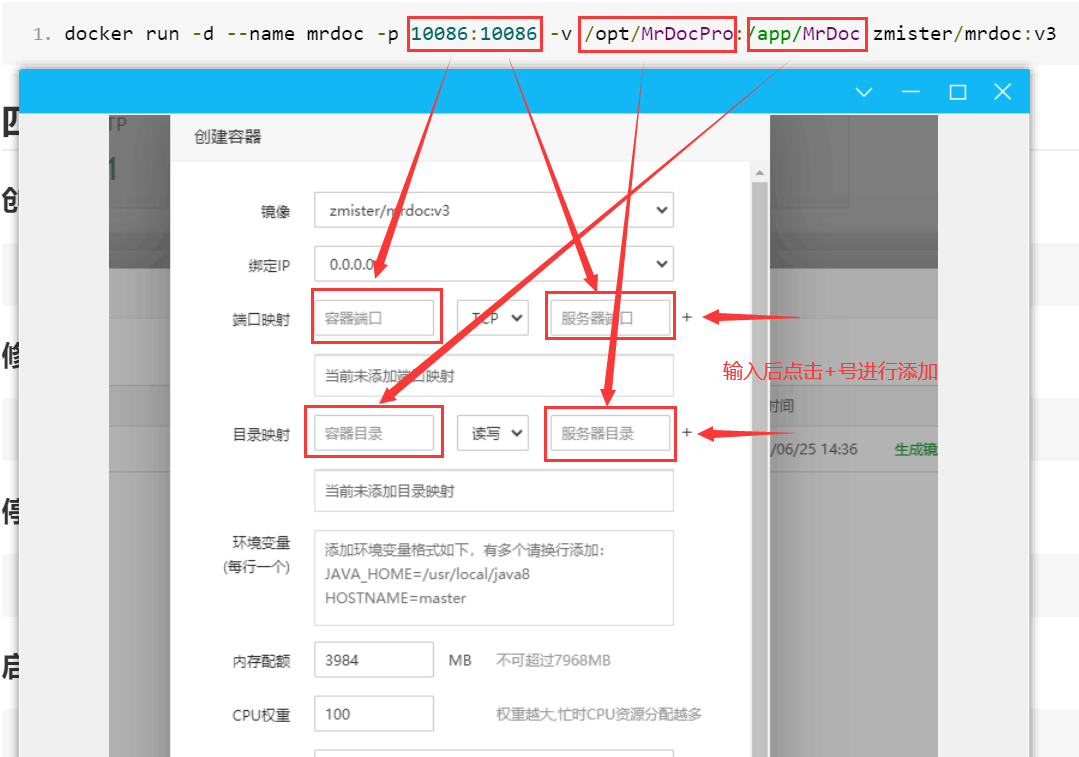 ## Four. Management ### Create administrator account ``` docker exec -it mrdoc python manage.py createsuperuser ``` ### Change user password ``` docker exec -it mrdoc python manage.py changepassword username ``` ### Stop container ``` docker stop mrdoc ``` ### Start container ``` docker start mrdoc ``` ### Delete container ``` docker rm -f mrdoc ``` ### View logs ``` docker logs mrdoc ``` ## Five. Version update 0. Enter the MrDoc project directory: >i 1. If you did not use `/opt` as the project root directory according to the documentation, change the corresponding path yourself. > > 2. Be sure to check the version update records to confirm whether the image version needs to be upgraded. ```bash # Open source edition cd /opt/MrDoc # Pro edition cd /opt/MrDocPro ``` 1. Pull the code: ```bash git fetch --all && git reset --hard origin/master && git pull ``` 2. Restart the Docker container ``` docker restart mrdoc ``` ## Six. Use Nginx reverse proxy / bind domain name After the Docker container runs successfully, you can access and use MrDoc through `http://IP:port`. However, our recommended deployment process is not yet complete. We recommend that you use Nginx to reverse proxy `127.0.0.1:10086`. If you need to bind a mapped domain name for `http://IP:port`, host static files, and perform other operations, you can do all of these in Nginx. See the documentation for details: - [Use Nginx to configure reverse proxy / bind domain name](https://doc.mrdoc.pro/doc/44910/) - [Use Nginx to host static file resources](https://doc.mrdoc.pro/doc/44876/) - [Use Nginx to enable SSL / set HTTPS](https://doc.mrdoc.pro/doc/44904/) ## Seven. Upgrade image 1. Stop the container ``` docker stop mrdoc ``` 2. Delete the container ``` docker rm -f mrdoc ``` 3. Execute Step Two and Step Three ## Eight. Upgrade in intranet environment 0. Stop the container. 1. Back up the `media` and `config` directories in the MrDoc code directory. 2. If the Docker image used is not the latest version, obtain the latest offline Docker image according to Step Two. 3. Download the latest version of the MrDoc code. 4. Overwrite the backed-up `media` and `config` folders into the latest MrDoc code directory. 5. Delete the container. 6. Run the Docker container according to Step Three. ## Nine. Use MySQL database See details: https://doc.mrdoc.pro/doc/44846/ ## Ten. Common issues ### 1. docker_mrdoc.sh issue Q: After the container starts, the logs show errors involving the docker_mrdoc.sh file, such as: `docker_mrdoc.sh: No such file or directory`, `docker_mrdoc.sh: line 17: syntax error: unexpected end of file (expecting "then")`, `not found docker_mrdoc.sh`, etc. A: This is because the line break character of the `docker_mrdoc.sh` file should be LF, not CRLF. If you pulled the code on the Windows platform or operated on this file with a code editor using CRLF, errors may occur. On the Windows platform, you can use `vscode` or `notepad++`; on the Linux platform, you can use `dos2unix` to convert the file line break character. In addition, enter the following command in the command line terminal: ``` git config --global core.autocrlf input ``` to avoid the line break character of the `docker_mrdoc.sh` file changing back to `CRLF` after subsequent code updates are pulled.
mrdoc
Sept. 29, 2026, 2:56 p.m.
Forward
Favorites
Last
Next
Scan the QR Code
Copy link
Scan the QR code to share.
Copy link
share
link
type
password
Update password
Validity period
Markdown file
Word document
PDF document (print)