MrDoc User Guide
Basic concepts
MrDoc page description
2.1 Home page
2.2 Collection browsing page
2.3 Document browsing page
2.4 Document editing and modification
2.4.1 Creating a document
2.4.2 Modify document
2.4.3 Create document template
2.4.4 Modify document template
2.4.5 Brief introduction to Markdown syntax
2.4.7 Uploading attachments
2.4.8 Draw a mind map
2.5, Personal Center
2.5.1 Managing documents
2.5.2 Managing collections
2.5.3 Managing document templates
2.5.4 Managing images
2.5.5 Managing user tokens
2.7 Registration and login
2.7.1 User registration
2.7.2 User login
Getting started
Create collection
Create document
Add member collaboration
Documents and knowledge base basics
Collection basic configuration
Pin collection
WebHook message push
Hide collection on homepage
Collection association set
Collection tab configuration
Document editing and content creation
Add document attachments
Show document directory
Create document shortcut
Set document tags
Set document alias
Insert video
Automatic document saving
Document management and organization
Collection directory sorting
Modify document sorting
Subordinate document control
Set document parent-child
Document version history
Transfer collection
Transfer document
Copy document/Move document
Document access records
Collection export and download
Document download and export
Export document PDF
Document drag-and-drop sorting
Collaboration and permission management
Set document permissions
Set collection access permissions
Document copy protection
Set document watermark
Collection collaboration/Collection member management
Document sharing
Collection sharing
Enable document comments
Image and attachment management
Configure image/attachment upload size limit
Configure image upload formats
Configure attachment upload formats/attachment allowlist
Attachment preview
Transfer attachments/Transfer images
Clean up images
Extract attachment text in bulk with the manage command
Data import and migration
Desktop client import
Import Joplin notebooks
Import Evernote
Web import
Command-line import
Web export
Third-party login configuration
DingTalk QR code login and in-app passwordless login configuration
WeCom authentication integration
LDAP authentication integration configuration
OIDC authentication integration
WeChat Official Account web authorization
Third-party storage configuration
MinIO configuration
Qiniu Cloud OSS configuration
Alibaba Cloud OSS configuration
AWS S3 configuration
AI knowledge base and intelligent Q&A
Basic configuration
AI model configuration
Qdrant deployment
Dify framework configuration
Rebuild document AI index
AI features
AI document creation
AI knowledge base Q&A
AI Q&A bot
WeCom smart robot
OnlyOffice integration
Drawio integration
System settings and management
Site information configuration
Homepage template configuration
Official website theme homepage configuration instructions
User and account configuration
Statistics code configuration
Document ads/info blocks/custom head configuration
Disable update detection
Site-wide search mode
Display image thumbnails in documents
Site feedback
RSS subscription
Site single tag settings
Outbound email configuration
Site data export
Editor configuration
Collection documentation page displays site top navigation bar.
Site announcement configuration
Personal account management
Set default editor
Set user nickname
Modify user password
Bind a third-party account
API and developer interfaces
Get user token
Get collection list
Get collection directory
Get collection document list
Get personal document list
Get specified document content
Create new collection
Create a new document
Update documentation
Upload image
Upload attachments
Verify user token
Upload local Office/PDF files as documents
Client and ecosystem integration
Desktop client
Mobile client
Browser extensions
Obsidian plugins
Common usage issues index
Powered by MrDoc Pro
-
+
home
OnlyOffice integration
# 📝 OnlyOffice Integration > d For Docker deployment, the image needs to be upgraded to the official Docker image version v6 or above. For other deployment methods, handle system dependencies on your own. MrDoc Pro edition supports uploading local Office files as documents for browsing. If you need to edit these Office documents online or create and edit Office documents directly within MrDoc, you need to deploy and integrate the OnlyOffice service. ## 1. Deploy OnlyOffice > i This section references the OnlyOffice deployment documentation. > > You can deploy OnlyOffice according to the official [deployment guide](https://api.onlyoffice.com/zh/editors/getdocs). We recommend using the official [Docker image](https://github.com/ONLYOFFICE/Docker-DocumentServer) provided by OnlyOffice for deployment. ### Deploy OnlyOffice with Docker > i Official OnlyOffice Docker image documentation: https://hub.docker.com/r/onlyoffice/documentserver ```shell docker run -d --restart=always --name oo \ -p 8123:80 \ -v /app/onlyoffice/DocumentServer/logs:/var/log/onlyoffice \ -v /app/onlyoffice/DocumentServer/data:/var/www/onlyoffice/Data \ -v /app/onlyoffice/DocumentServer/lib:/var/lib/onlyoffice \ -v /app/onlyoffice/DocumentServer/db:/var/lib/postgresql \ onlyoffice/documentserver:latest ``` The above command will run an OnlyOffice container named `oo` on port `8123`, and mount OnlyOffice data in the `/app/onlyoffice/DocumentServer/` directory. ### View JWT Token Enter the following command in the terminal to get the default JWT token value of OnlyOffice. Copy it for configuration use. ``` docker exec oo /var/www/onlyoffice/documentserver/npm/json -f /etc/onlyoffice/documentserver/local.json 'services.CoAuthoring.secret.session.string' ``` ### Additional Configuration: Reverse Proxy - WebSocket Support If you use Nginx or other tools such as BT Panel Nginx to reverse proxy the deployed OnlyOffice, you need to add additional Nginx configuration to support WebSocket: ``` proxy_http_version 1.1; proxy_set_header Upgrade $http_upgrade; proxy_set_header Connection "upgrade"; ``` Taking BT Panel as an example, you can add the following configuration in the reverse proxy: 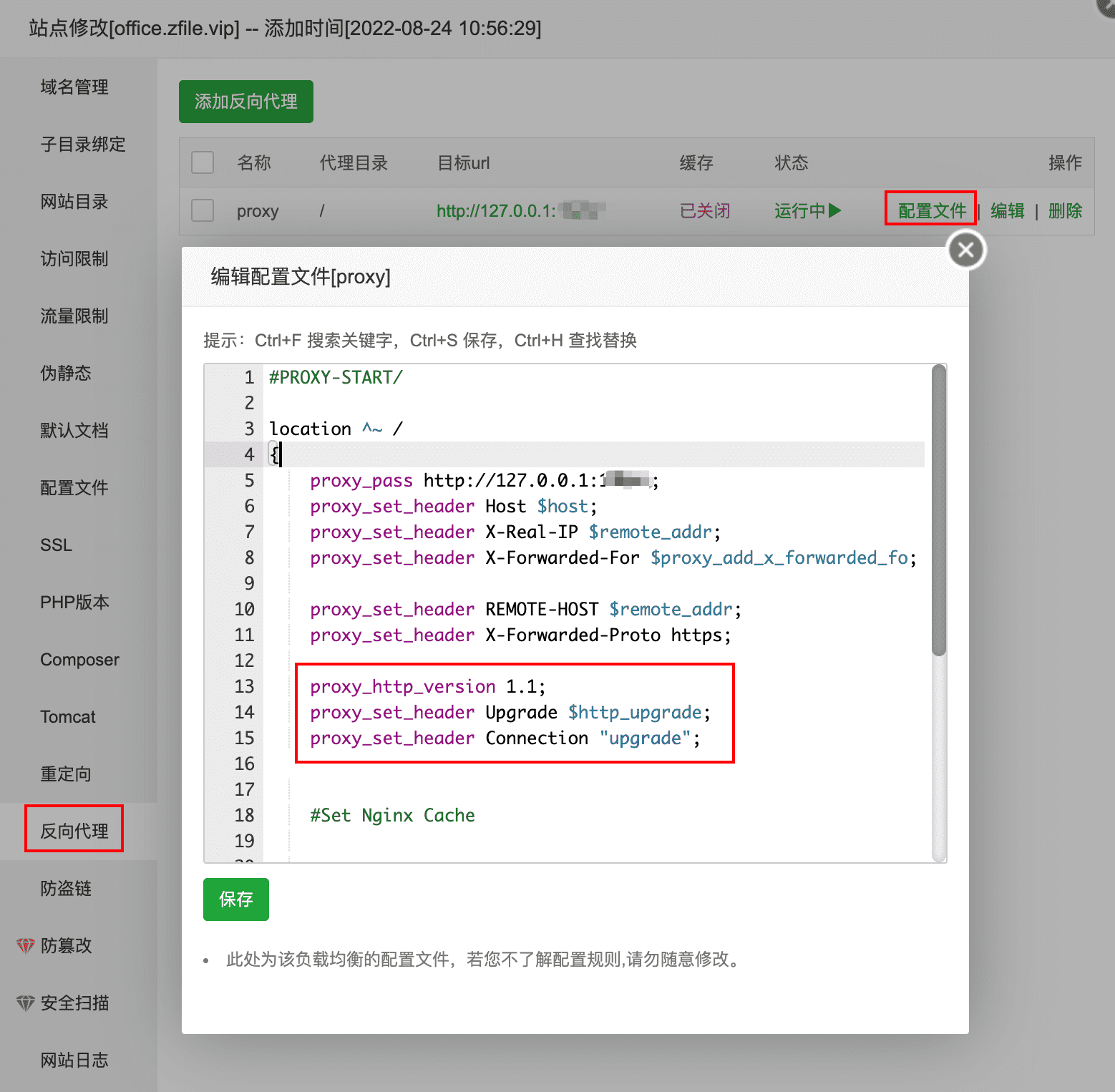 ### Additional Configuration: Reverse Proxy - HTTPS Additional Configuration If the OnlyOffice you deployed uses HTTPS, you also need to add the following configuration: ``` proxy_set_header X-Forwarded-Proto https; ``` Image omitted, refer to the BT Panel settings above. ## 2. Configure MrDoc After the OnlyOffice service is deployed, you need to fill in the OnlyOffice-related configuration information in MrDoc. Once the configuration is complete, you can directly use OnlyOffice-based Office documents in MrDoc. Go to the "Admin" -- "Site Settings" page, select "Project, Document, Material Settings", fill in the OnlyOffice service address and [JWT token](#h3-view-jwt-token) under "OnlyOffice Configuration", and finally enable the OnlyOffice feature switch and save the configuration. > d Please note that the OnlyOffice service address URL must end with a slash `/`, for example: `https://onlyoffice.mrdoc.pro/`. 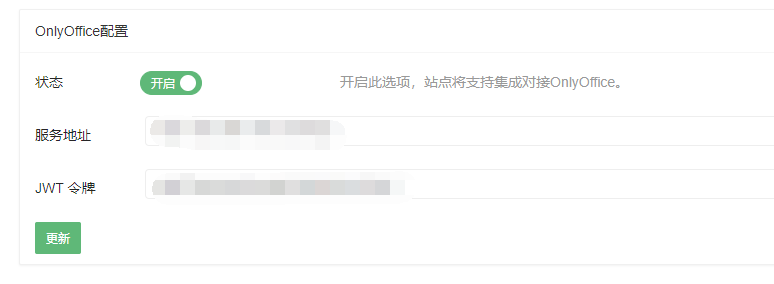 ### 2.1 HTTPS Additional Configuration If your MrDoc uses HTTPS, be sure to add the following configuration to MrDoc's Nginx reverse proxy configuration: ``` proxy_set_header X-Forwarded-Proto $scheme; ``` Otherwise, an error message like "==This file cannot be saved. Please check the connection settings or contact the administrator...==" may appear. ## 3. Usage When the OnlyOffice feature switch is enabled, a "OnlyOffice" option will appear in the new menu bar at the top of the homepage, project, and document pages. Click it to enter the OnlyOffice document creation page. 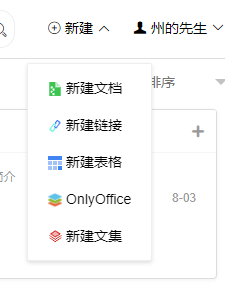 Here, you can directly choose to create Word, Excel, PPT, form files, etc., or upload an Office file from local: 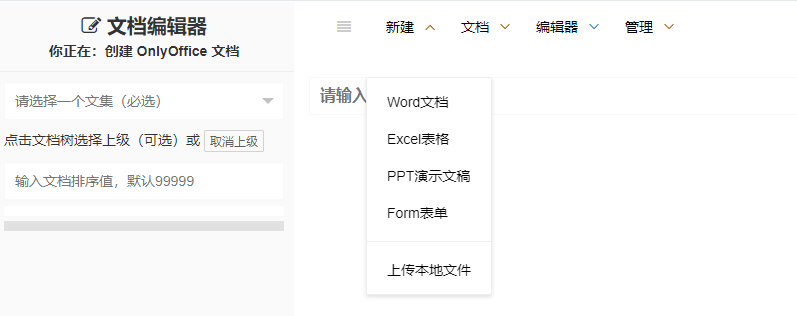 After selection, the OnlyOffice editing interface will be rendered. After editing is complete, follow the normal document publishing process. 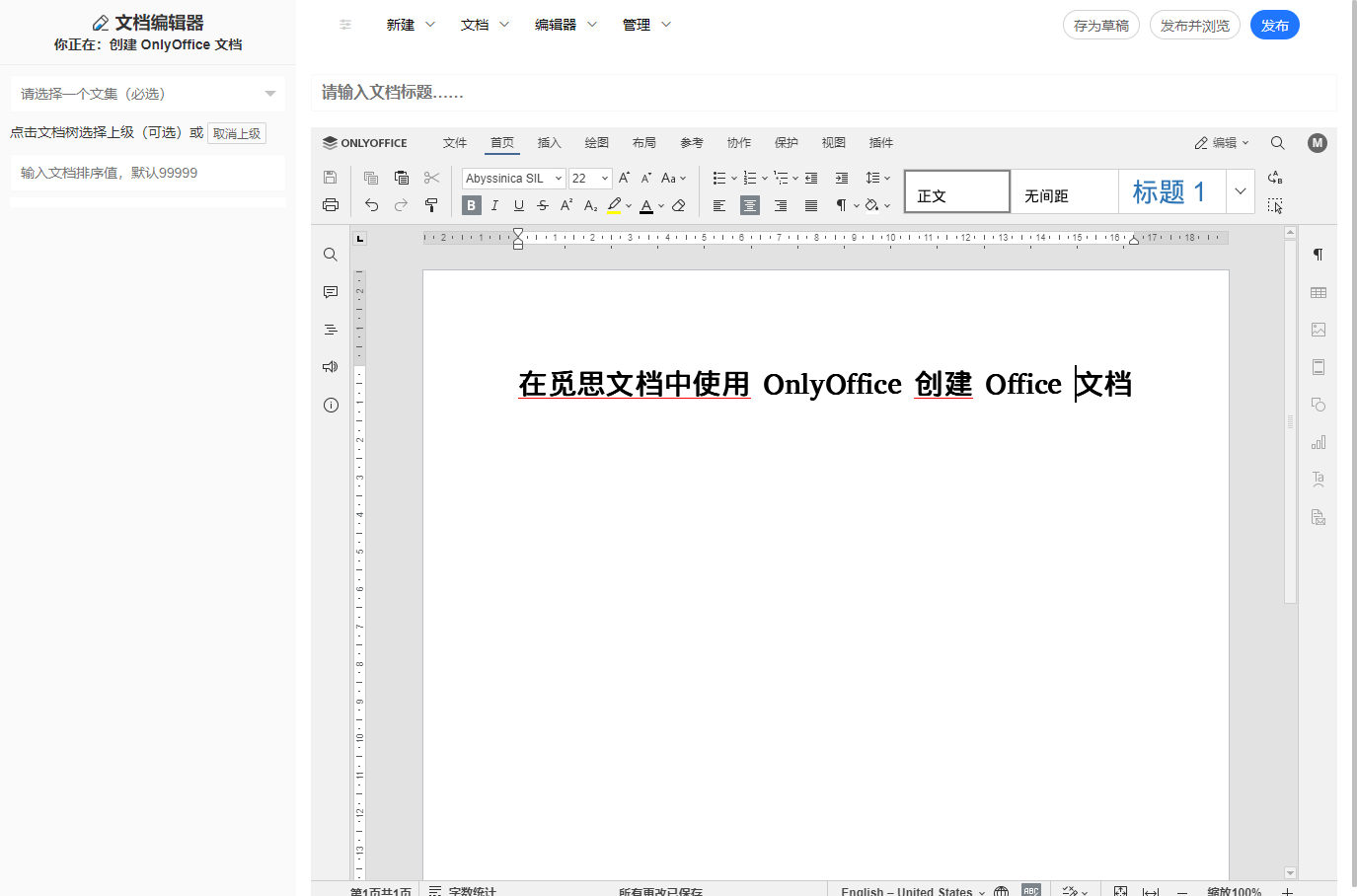 ## 4. Other Issues 1. When the time of the MrDoc server and the OnlyOffice server are inconsistent, a prompt may pop up: "This document cannot be saved. Please check the connection settings or contact your administrator. When you click the 'OK' button, the system will prompt you to download the document." @[frag](id=7 title=Pro edition guide - demo category)
mrdoc
Sept. 29, 2026, 3:06 p.m.
Forward
Favorites
Last
Next
Scan the QR Code
Copy link
Scan the QR code to share.
Copy link
share
link
type
password
Update password
Validity period
Markdown file
Word document
PDF document (print)