MrDoc User Guide
Basic concepts
MrDoc page description
2.1 Home page
2.2 Collection browsing page
2.3 Document browsing page
2.4 Document editing and modification
2.4.1 Creating a document
2.4.2 Modify document
2.4.3 Create document template
2.4.4 Modify document template
2.4.5 Brief introduction to Markdown syntax
2.4.7 Uploading attachments
2.4.8 Draw a mind map
2.5, Personal Center
2.5.1 Managing documents
2.5.2 Managing collections
2.5.3 Managing document templates
2.5.4 Managing images
2.5.5 Managing user tokens
2.7 Registration and login
2.7.1 User registration
2.7.2 User login
Getting started
Create collection
Create document
Add member collaboration
Documents and knowledge base basics
Collection basic configuration
Pin collection
WebHook message push
Hide collection on homepage
Collection association set
Collection tab configuration
Document editing and content creation
Add document attachments
Show document directory
Create document shortcut
Set document tags
Set document alias
Insert video
Automatic document saving
Document management and organization
Collection directory sorting
Modify document sorting
Subordinate document control
Set document parent-child
Document version history
Transfer collection
Transfer document
Copy document/Move document
Document access records
Collection export and download
Document download and export
Export document PDF
Document drag-and-drop sorting
Collaboration and permission management
Set document permissions
Set collection access permissions
Document copy protection
Set document watermark
Collection collaboration/Collection member management
Document sharing
Collection sharing
Enable document comments
Image and attachment management
Configure image/attachment upload size limit
Configure image upload formats
Configure attachment upload formats/attachment allowlist
Attachment preview
Transfer attachments/Transfer images
Clean up images
Extract attachment text in bulk with the manage command
Data import and migration
Desktop client import
Import Joplin notebooks
Import Evernote
Web import
Command-line import
Web export
Third-party login configuration
DingTalk QR code login and in-app passwordless login configuration
WeCom authentication integration
LDAP authentication integration configuration
OIDC authentication integration
WeChat Official Account web authorization
Third-party storage configuration
MinIO configuration
Qiniu Cloud OSS configuration
Alibaba Cloud OSS configuration
AWS S3 configuration
AI knowledge base and intelligent Q&A
Basic configuration
AI model configuration
Qdrant deployment
Dify framework configuration
Rebuild document AI index
AI features
AI document creation
AI knowledge base Q&A
AI Q&A bot
WeCom smart robot
OnlyOffice integration
Drawio integration
System settings and management
Site information configuration
Homepage template configuration
Official website theme homepage configuration instructions
User and account configuration
Statistics code configuration
Document ads/info blocks/custom head configuration
Disable update detection
Site-wide search mode
Display image thumbnails in documents
Site feedback
RSS subscription
Site single tag settings
Outbound email configuration
Site data export
Editor configuration
Collection documentation page displays site top navigation bar.
Site announcement configuration
Personal account management
Set default editor
Set user nickname
Modify user password
Bind a third-party account
API and developer interfaces
Get user token
Get collection list
Get collection directory
Get collection document list
Get personal document list
Get specified document content
Create new collection
Create a new document
Update documentation
Upload image
Upload attachments
Verify user token
Upload local Office/PDF files as documents
Client and ecosystem integration
Desktop client
Mobile client
Browser extensions
Obsidian plugins
Common usage issues index
Powered by MrDoc Pro
-
+
home
Obsidian plugins
# ⌨️ Obsidian Plugin MrDoc provides an Obsidian plugin — "Obsidian Mrdoc Plugin" — to synchronize documents between Obsidian and MrDoc. - Provides Obsidian users with a new solution for remote synchronization of local documents; - Provides a new solution for online web browsing of Obsidian local documents; - Provides MrDoc users with a new solution for offline writing, saving, and synchronizing documents; ## System Requirements - MrDoc Pro edition `v1.3.6+`, MrDoc open source edition `v0.9.2+` - Obsidian `v1.4.16` ## Correspondence of Basic Concepts - Obsidian's "Vault" corresponds to MrDoc's "project"; - "Markdown files" within an Obsidian vault correspond to "documents" in MrDoc; - "Folders" within an Obsidian vault correspond to "documents" in MrDoc that contain sub-documents; ## Plugin Rules ### Vault In Obsidian, you need to select the target project in MrDoc on the plugin's settings page. > If you want documents to be synchronized to a new MrDoc project, you can click the "New" button to create a project and then select it. ### Pull Remote Documents The plugin adds a function icon button to the left toolbar, used to pull all documents within a project from MrDoc to the local Obsidian. After clicking the pull operation, the plugin retrieves information for all documents within the specified project and prepares to write them to the local Obsidian. - If a file/folder with the same name does not exist locally, a new file/folder is created; - If a file with the same name already exists locally, it determines whether a mapping relationship exists between the local file and the remote document: - If a mapping relationship exists, it compares the last modification time of the local file and the remote document: - If the local file's last modification time is newer than the remote document, skip; - If the local file's last modification time is older than the remote document, overwrite the local file with the remote document's content. - If no mapping relationship exists, skip. - If a folder with the same name already exists locally, skip. ### Create New File/Folder When you create a new file/folder locally in Obsidian, a document is automatically created in the specified project in MrDoc, and a mapping relationship between the local document and the remote document is maintained within the plugin; ### Rename File/Folder When you rename a file/folder locally in Obsidian, the corresponding document title in MrDoc is automatically modified. ### Move File Hierarchy When you move a file to a different folder locally in Obsidian, the corresponding document's parent in MrDoc is automatically modified. ### Modify File After modifying the file content, you can click the "Sync to MrDoc" menu in the "More options" at the top right of the editor to push the document's updates to MrDoc. You can also hover the mouse over the specified document in the file list on the left side of the Obsidian software, right-click to bring up the context menu, and then click the "Sync to MrDoc" menu to push the document's updates to MrDoc. In addition, the plugin provides a **real-time push** option. You can enable "Real-time document content update" on the plugin's settings page. Then, when you modify the file content in Obsidian, the plugin will update the latest file content to MrDoc in real time. ### Delete File/Folder If a mapping relationship has been established between a local file/folder in Obsidian and MrDoc, then when you delete the file/folder locally, the plugin will also synchronously delete the document in MrDoc (soft delete, the document enters the recycle bin). ### Image Handling For image handling, the plugin provides two options: - Save local images - Save images from the clipboard **1. Save local images** When you paste or drag a local image into the Obsidian editor, the plugin uploads the image to MrDoc, then returns the image link address from MrDoc and fills it into the Obsidian editor. **2. Save images from the clipboard** When you copy text from elsewhere to paste into the Obsidian editor, the plugin extracts the image links within it, uploads them to MrDoc, then returns the image link addresses from MrDoc to replace the original image links in the text. ### Reset Mapping Relationship After a mapping relationship has been established between a local file in Obsidian and a document in MrDoc, if you need to remove its bound mapping relationship, you can click "Reset document mapping" on the plugin's settings page. Then, operations on the local file in Obsidian will not be synchronized to MrDoc. ## Usage Tutorial ### Installation 1. Official installation (the plugin has been submitted for official review) 2. Installation via BRAT (recommended) Open Settings - Third-party plugins - Browse - search for brat, download, install, and enable it. 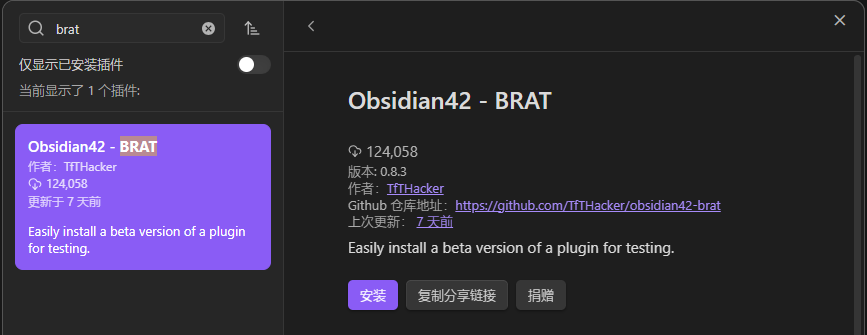 Open BRAT settings 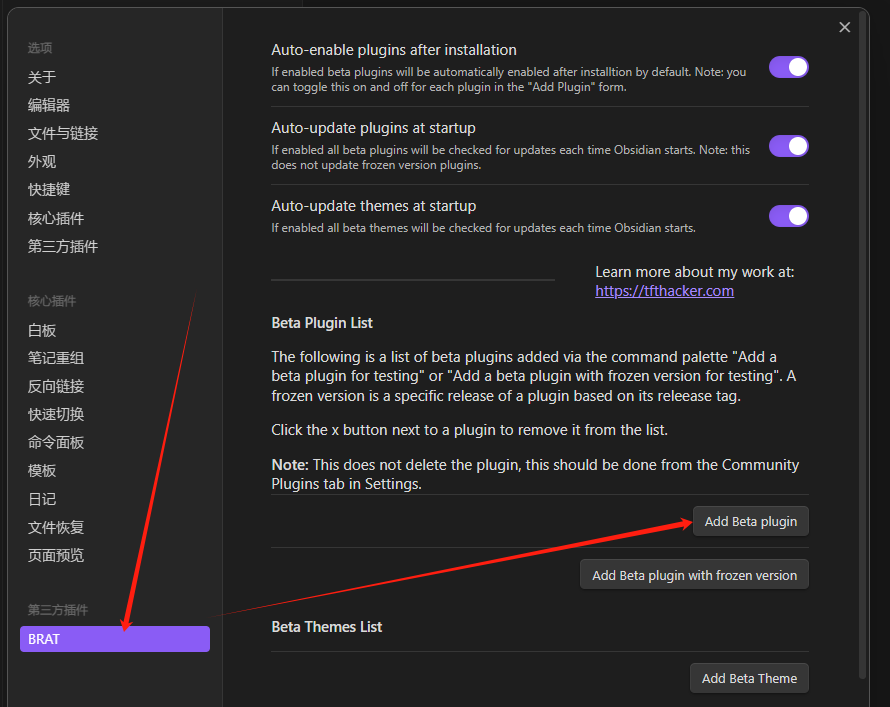 Click Add Beta plugin, a popup will appear, fill in the following URL: 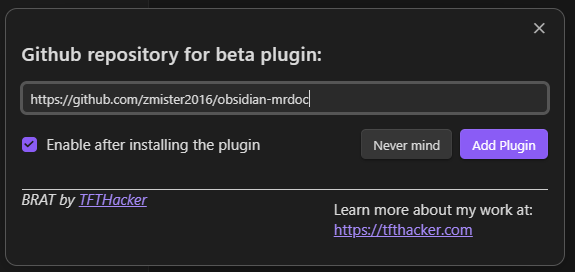 ```text https://github.com/zmister2016/obsidian-mrdoc ``` Click the `Add Plugin` button and wait for the installation. The following message indicates successful installation: 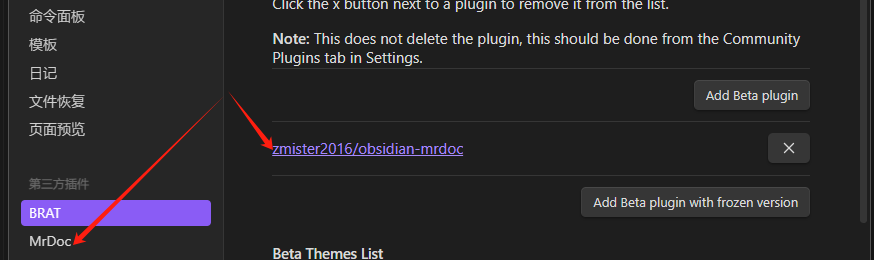 Before using this plugin, you need to perform some configuration. ### Configure Connection Information Go to the "MrDoc" plugin configuration page, fill in "MrDoc URL" and "User Token" (obtained at: Personal Center -> Personal Management -> Token Management), and click the "Check" button to test whether the connection is successful. 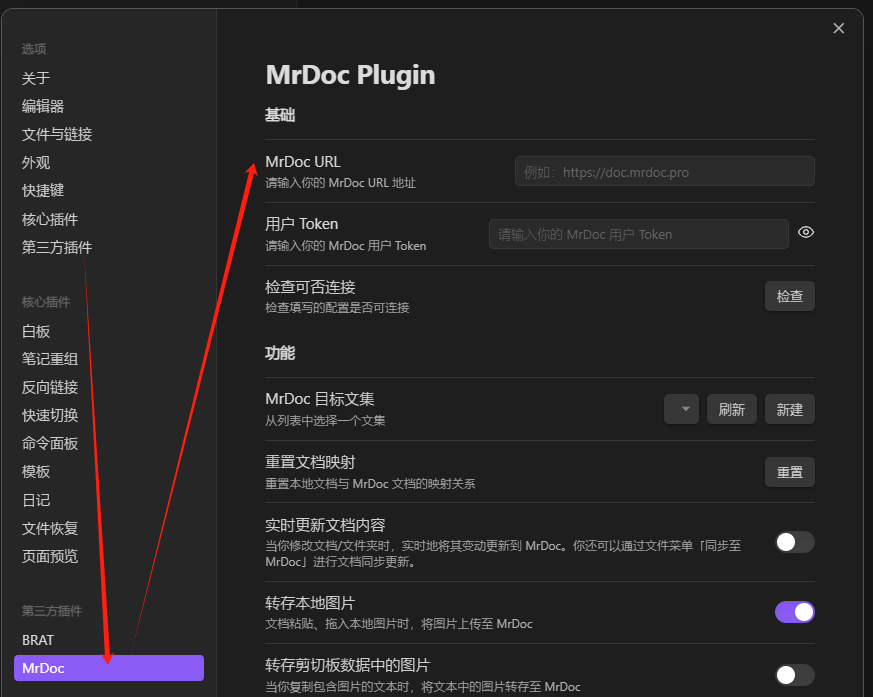 ### Specify Target Project After successfully configuring the connection information, you need to specify a target project in MrDoc to bind with the Obsidian vault. Click the "Refresh" button to obtain your project list, and then you can select a project from it. 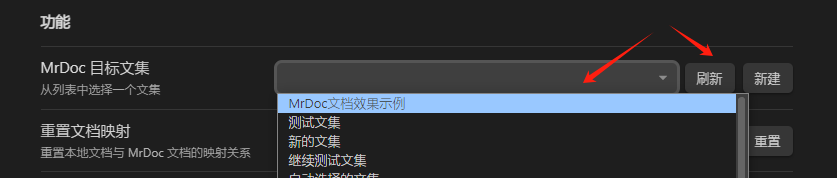 You can also click the "New" button to create a blank project, and then select it from the project list as the binding for the Obsidian vault. 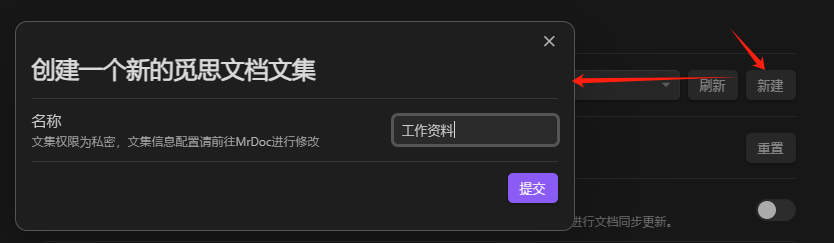 After completing the above two operations, creating, renaming, and moving documents within the Obsidian vault will be synchronized to MrDoc. ### Pull Documents If you have specified a MrDoc project but the local Obsidian vault is empty, you can pull the documents within the MrDoc project into the Obsidian vault. Click the button on the left sidebar of the Obsidian main interface, as shown in the figure: 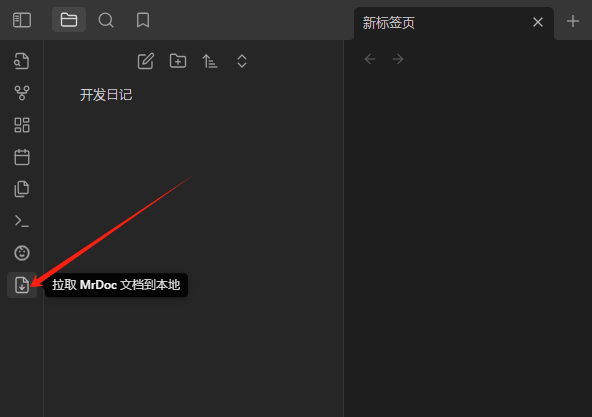 Click the "Confirm" button in the popup modal, and the plugin will pull the documents in the specified project from MrDoc to Obsidian. 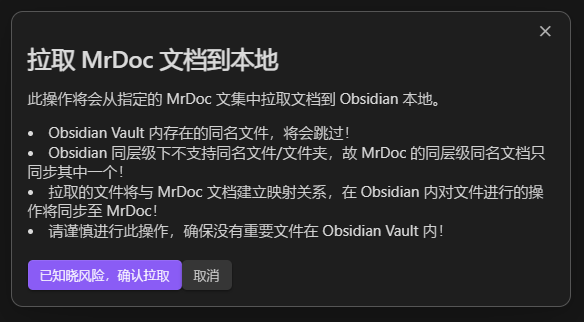 After the pull is complete, all newly created folders and documents will be displayed. 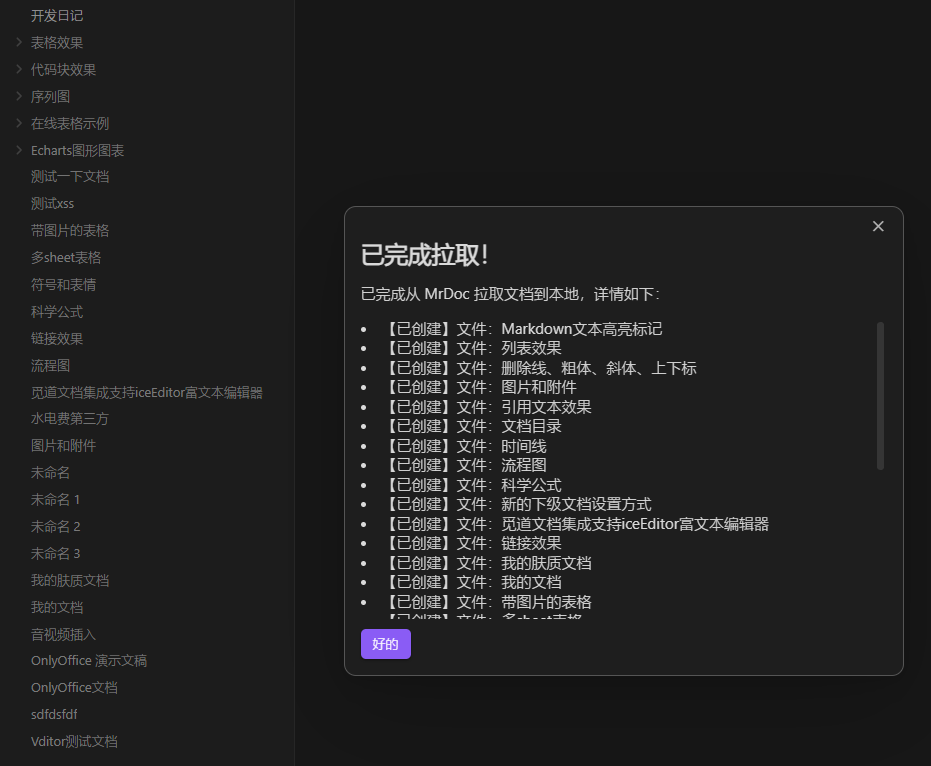 ### Synchronize Documents After you modify a document in Obsidian, you can synchronize the document's content by clicking the "Sync to MrDoc" menu in the document menu. 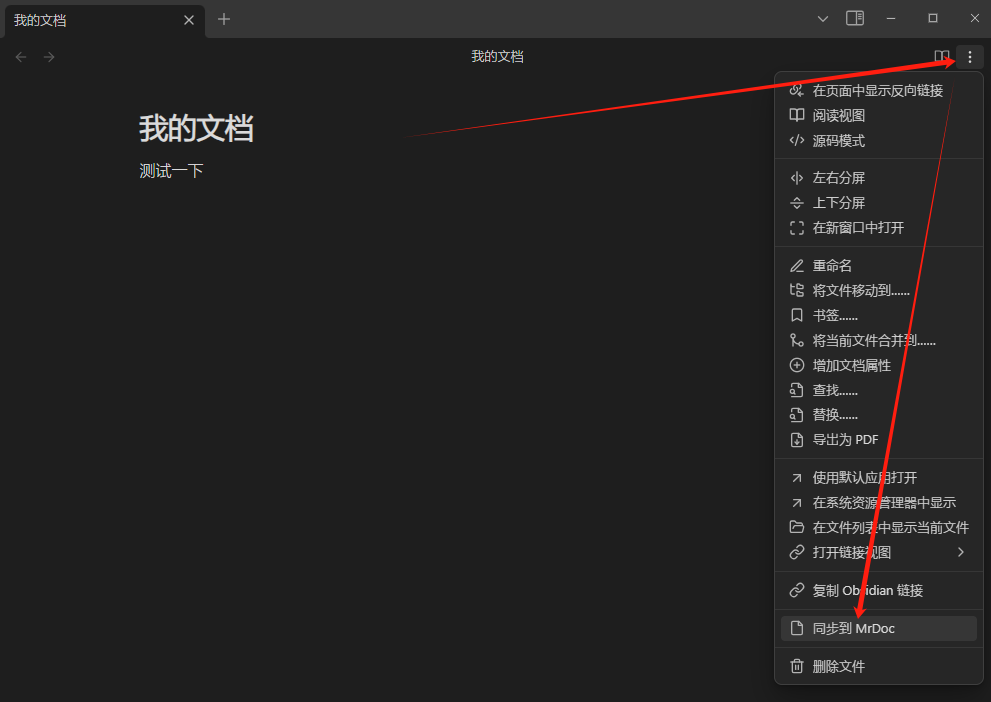 You can also right-click the specified file in the vault file list on the left to bring up the file's right-click menu, and click the "Sync to MrDoc" menu to synchronize the document's content. 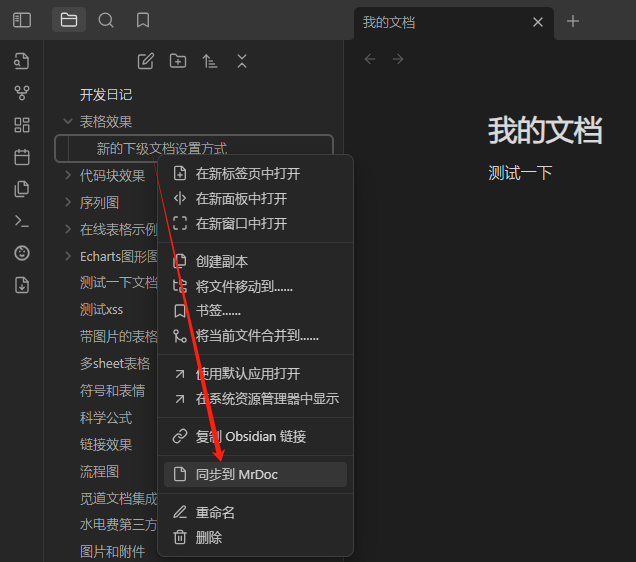 If you have enabled the "Real-time document content update" switch on the plugin's configuration page, then after you modify the document content, no manual operation is required; the plugin will automatically synchronize your updates to MrDoc. 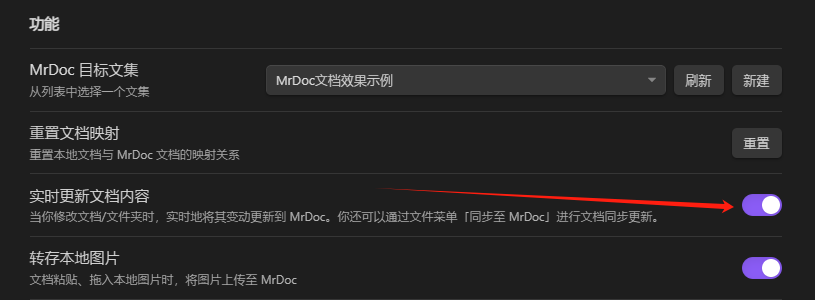  ### Save Local Images If your text content contains images, it is recommended that you enable the "Save local images" switch in the plugin configuration. This will save images that you copy or drag from local into the document editor to MrDoc, and the image links within the document will be updated to MrDoc's image links. In this way, whether you browse the document locally or online, the images within it will display correctly.  ### Save Images from Clipboard Data If you frequently copy content from elsewhere into documents in the Obsidian vault, it is recommended that you enable the "Save images from clipboard data" switch in the plugin configuration. After enabling this switch, the plugin will extract the image links from the clipboard text content, upload them to MrDoc, and then replace them with MrDoc's image links. 
mrdoc
Sept. 29, 2026, 3:09 p.m.
Forward
Favorites
Last
Next
Scan the QR Code
Copy link
Scan the QR code to share.
Copy link
share
link
type
password
Update password
Validity period
Markdown file
Word document
PDF document (print)