MrDoc Deployment Guide
Quick Start
Docker Deployment
Docker Image Deployment
Docker Compose Deployment
Configure Guide
Configuration File Guide
Customizing uWSGI Configuration
Data Security
Site Data Backup / Site Migration
Data Export and Import
Open Source Edition → Professional Edition Data Migration
Troubleshooting
Server Requirements & Deployment Recommendations
Powered by MrDoc Pro
-
+
home
Docker Image Deployment
> i The official Docker image already includes all system dependencies and Python libraries. It also comes with built-in database initialization & migration commands, full-text index build commands, and PDF export dependencies. > No extra commands or additional installations are required. ## 0. Install Docker <details> <summary>Install Docker using BT Panel</summary> <img src="/media/202206/2022-06-04_184807_473081.png" /> </details> ### Install Docker on other systems [https://www.runoob.com/docker/docker-tutorial.html](https://www.runoob.com/docker/docker-tutorial.html) --- ## 1. Obtain the MrDoc Source Code > d **Note 1:** Make sure Git is installed. > If not, refer to [https://www.runoob.com/git/git-install-setup.html](https://www.runoob.com/git/git-install-setup.html) > d **Note 2:** For intranet environments, download the code from the repository’s web interface and manually copy it to the corresponding directory on the intranet server. --- Open the terminal and enter the `opt` directory: > s **Tip:** You may clone the code into any directory, but when creating the container, remember to replace `/opt/MrDoc` or `/opt/MrDocPro` with your custom path. ``` cd /opt ``` ### Open Source Edition: ``` git clone https://gitee.com/zmister/MrDoc.git ``` ### Pro Edition: ``` git clone https://{username}:{password}@git.mrdoc.pro/MrDoc/MrDocPro.git ``` > d **Important:** > Do NOT add braces `{ }` around the username and password! > Do NOT add braces! > Do NOT add braces! Example: ``` git clone https://mrdoc:123456@git.mrdoc.pro/MrDoc/MrDocPro.git ``` ### Convert line endings in `docker_mrdoc.sh` If your host system is Windows, open `docker_mrdoc.sh` with VSCode or Notepad++, and change the line endings from **Windows (CRLF)** to **Unix (LF)**. --- ## 2. Download the Docker Image ### Method 1: Pull the image online ``` docker pull zmister/mrdoc:v9.3 ``` Aliyun mirror (faster in China): ``` docker pull registry.cn-hangzhou.aliyuncs.com/zmister/mrdoc:v9.3 ``` ### Method 2: Import an offline image > i Recommended for intranet environments, unstable networks, or servers unable to pull images directly. **Download offline Docker image:** Baidu Cloud: [https://pan.baidu.com/s/1OExl7iEz62YSF4u6aQ0UGA?pwd=fr87](https://pan.baidu.com/s/1OExl7iEz62YSF4u6aQ0UGA?pwd=fr87) Code: `fr87` Quark Cloud: [https://pan.quark.cn/s/ee6ecd87ffc8](https://pan.quark.cn/s/ee6ecd87ffc8) Import: ``` docker load -i docker-mrdoc-env.v9.3.amd64.tar ``` --- ## 3. Run the Docker Container > **i** If using the Aliyun mirror, replace `zmister/mrdoc` with > `registry.cn-hangzhou.aliyuncs.com/zmister/mrdoc` ### Open Source Edition: ``` docker run -d --name mrdoc --restart always -p 10086:10086 -v /opt/MrDoc:/app/MrDoc zmister/mrdoc:v9.3 ``` Aliyun mirror: ``` docker run -d --name mrdoc --restart always -p 10086:10086 -v /opt/MrDoc:/app/MrDoc registry.cn-hangzhou.aliyuncs.com/zmister/mrdoc:v9.3 ``` ### Pro Edition: ``` docker run -d --name mrdoc --restart always -p 10086:10086 -v /opt/MrDocPro:/app/MrDoc zmister/mrdoc:v9.3 ``` Aliyun mirror: ``` docker run -d --name mrdoc --restart always -p 10086:10086 -v /opt/MrDocPro:/app/MrDoc registry.cn-hangzhou.aliyuncs.com/zmister/mrdoc:v9.3 ``` ### Using BT Panel’s Docker Manager (GUI): 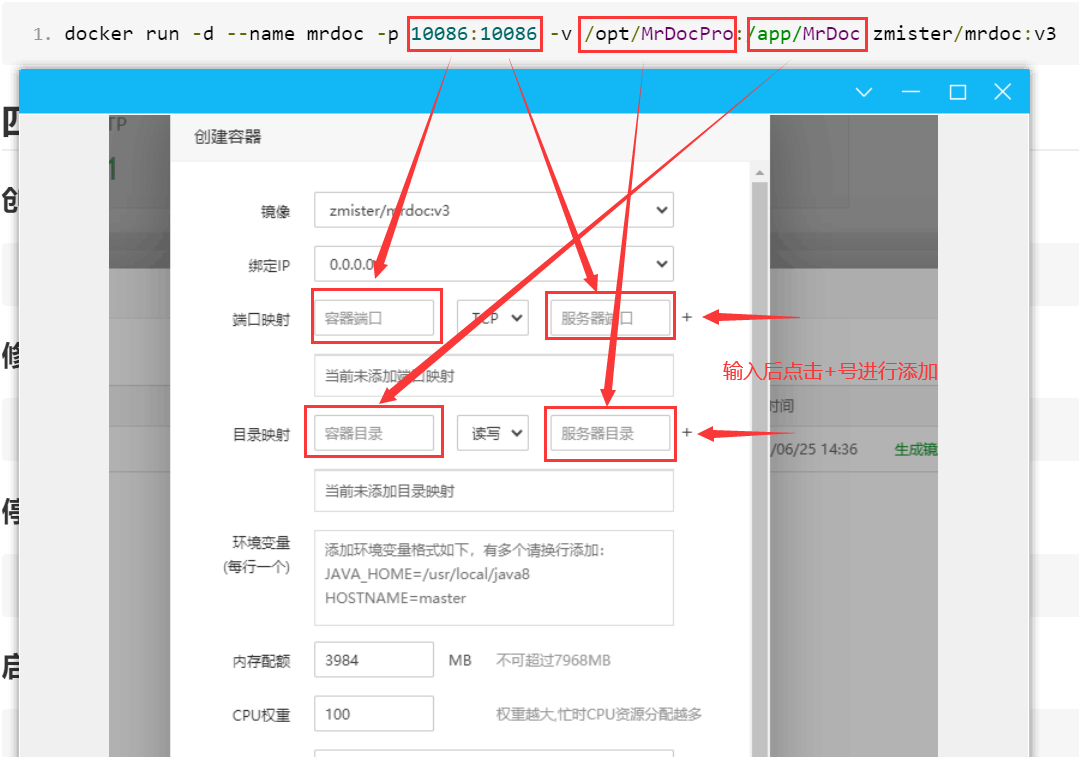 --- ## 4. Management ### Create an admin account ``` docker exec -it mrdoc python manage.py createsuperuser ``` ### Change user password ``` docker exec -it mrdoc python manage.py changepassword <username> ``` ### Stop container ``` docker stop mrdoc ``` ### Start container ``` docker start mrdoc ``` ### Remove container ``` docker rm -f mrdoc ``` ### View container logs ``` docker logs mrdoc ``` --- ## 5. Update to the Latest Version 0. Enter the MrDoc project directory: > i > > 1. If you did not use `/opt` as your project root, adjust the path accordingly. > 2. Always review the release notes to confirm whether a new Docker image is required. ```bash # Open Source cd /opt/MrDoc # Pro cd /opt/MrDocPro ``` 1. Pull the latest code: ```bash git fetch --all && git reset --hard origin/master && git pull ``` 2. Restart the container: ``` docker restart mrdoc ``` --- ## 6. Use Nginx for Reverse Proxy / Domain Binding Once the container is running, you can access MrDoc via `http://IP:port`. However, we strongly recommend configuring Nginx to reverse proxy `127.0.0.1:10086`. You can also configure domain binding, static file hosting, or HTTPS in Nginx. See the documentation: * Reverse proxy / domain binding: [https://doc.mrdoc.pro/doc/44910/](https://doc.mrdoc.pro/doc/44910/) * Host static resources: [https://doc.mrdoc.pro/doc/44876/](https://doc.mrdoc.pro/doc/44876/) * Enable SSL / HTTPS: [https://doc.mrdoc.pro/doc/44904/](https://doc.mrdoc.pro/doc/44904/) --- ## 7. Upgrade Docker Image 1. Stop the container: ``` docker stop mrdoc ``` 2. Remove the container: ``` docker rm -f mrdoc ``` 3. Repeat **Step 2** (pull/import image) and **Step 3** (run container). --- ## 8. Upgrading in an Intranet Environment 0. Stop the container. 1. Back up the `media` and `config` folders from the MrDoc directory. 2. If the Docker image is outdated, download the latest offline image (Step 2). 3. Download the latest MrDoc source code. 4. Restore the backed-up `media` and `config` folders into the new code directory. 5. Remove the container. 6. Run the container again (Step 3). --- ## 9. Using MySQL See: [https://doc.mrdoc.pro/doc/44846/](https://doc.mrdoc.pro/doc/44846/) --- ## 10. Common Issues ### 1. Problems related to `docker_mrdoc.sh` **Q:** Logs show: `docker_mrdoc.sh: No such file or directory` `syntax error: unexpected end of file (expecting "then")` `not found docker_mrdoc.sh` or similar. **A:** This happens when the file uses **CRLF** line endings instead of **LF**. On Windows, use **VSCode** or **Notepad++** to convert the file. On Linux, use `dos2unix`. Also run: ``` git config --global core.autocrlf input ``` This prevents Git from converting line endings back to CRLF after updating the code.
mrdoc
Nov. 18, 2025, 10:20 a.m.
Forward
Favorites
Last
Next
Scan the QR Code
Copy link
Scan the QR code to share.
Copy link
Markdown file
Word document
PDF document
PDF document (print)
share
link
type
password
Update password
Validity period