MrDoc User Manual
🎊 Basic Concepts
📑 Collection Feature
Document Sorting (Drag & Drop)
Document Watermark
Collection Permissions
Export as PDF / EPUB / Word
Collaboration & Members
Collection Info & Settings
Export Collection
Document Access Log
Pin Collection
Disable Document Copying
Transfer Collection
Collection Sharing
Enable Document Comments
WebHook Delivery
Hide Collection on Homepage
Collection Association Set
Tabs Configuration
Content Table Sorting
📄 Document Features
Subdocument Control
Sort Documents
Set Document Level
Document Sharing
Copy / Move Document
Document Permissions
Document Versions
Document Download
Export Markdown
Export as PDF
Export as Excel
Document Attachments
Transfer Document
Directory Display
Create Shortcut
Insert Video
Document Tags
Auto-Save
🗄️ Asset Management
Upload Size Limit
Allowed Image Formats
Allowed Attachment Formats
Attachment Preview
Transfer Attachments / Images
Image Cleanup
🎯 Import and Export
Desktop Import
Import from Joplin
Import from Evernote
Web Import
CLI Import
🔑 Third-Party Login
DingTalk Login
WeChat Work Auth
LDAP Integration
OIDC Integration
WeChat OAuth
📦 Third-Party Storage
MinIO
Qiniu OSS
Aliyun OSS
AWS S3
🤖AI Integration
Basic Configuration
Dify Integration
📝OnlyOffice Integration
📊 Drawio Integration
⚓ Site Management
Site Info
Homepage Template
Users & Accounts
Tracking Code
Ads / Info Block / Custom Head
Disable Update Check
Search Mode
Image Thumbnails in Docs
Feedback
RSS
Single Tag Settings
Email Sender
Site Data Export
Editor Settings
🧑 Personal Account
Default Editor
User Nickname
Change Password
Bind Third-Party Account
🎈 User Token API
Get User Token
List Collections
Get Collection Catalog
Get Collection Documents
Get Personal Documents
Get Document Content
Create Collection
Create Document
Update Document
Upload Image
Verify Token
🖥️ Client
💻 Desktop
📱 Mobile
🌐 Browser Extension
⌨️Obsidian Plugins
Common Issues Index
Powered by MrDoc Pro
-
+
home
Users & Accounts
MrDoc supports configuration for user registration, user login, and other functionalities. The configuration paths are as follows: - **Open Source Edition**: Admin Panel → Site Settings - **Professional Edition**: Admin Panel → Site Settings → Basic Settings, as shown below: 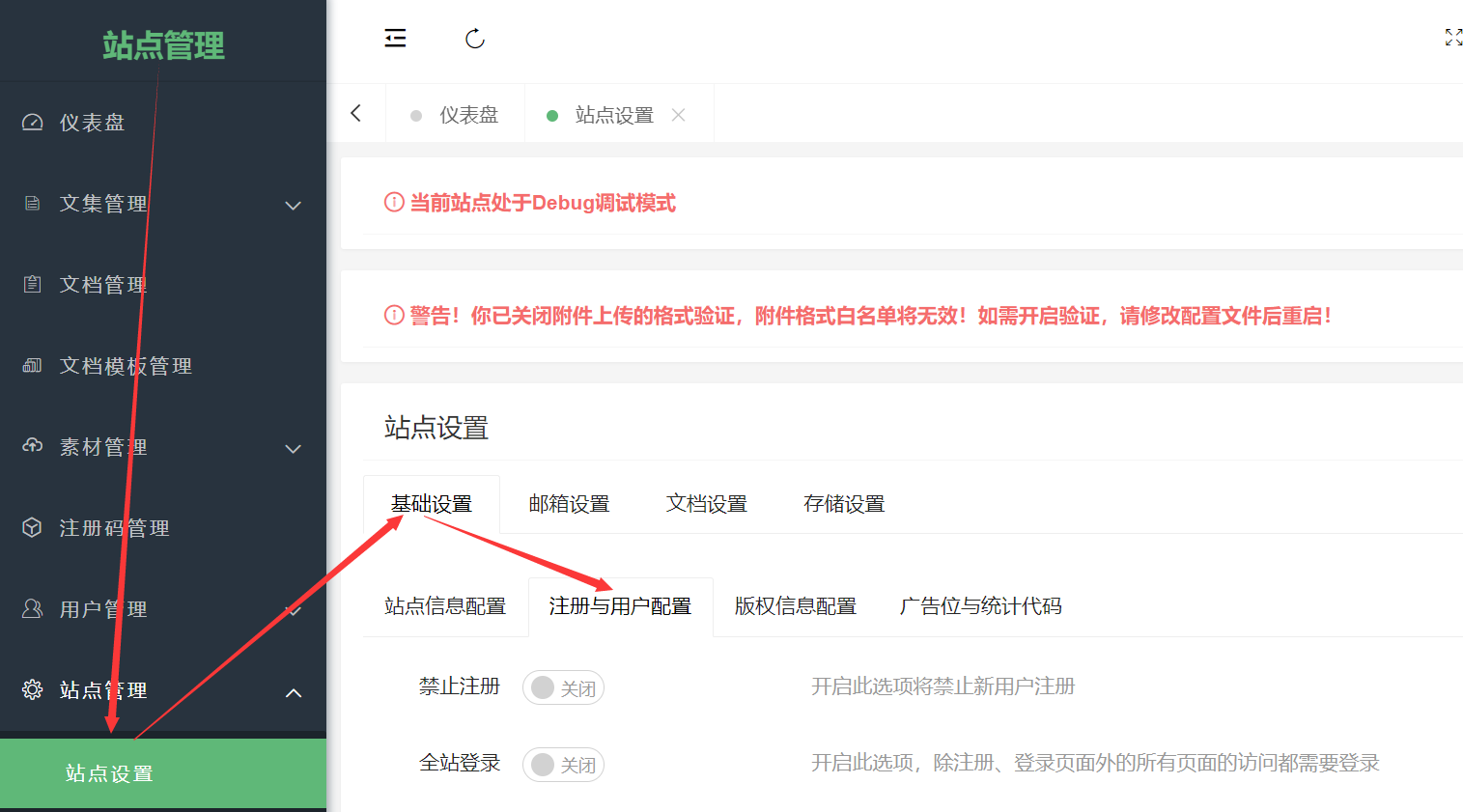 Below is an introduction to each configuration item. ## Default Login Method > ⚠️ After setting another default login method, the system login page will become inaccessible, meaning the username + password login method will no longer be supported. The default login method for MrDoc is system username + password. The Professional Edition also supports third-party authentication methods such as DingTalk, Enterprise WeChat, LDAP, and OIDC. Once these third-party authentication methods are configured, the default system login page will display corresponding third-party login icon buttons. If you wish to redirect users directly to the corresponding third-party login link upon accessing the login page, you can set the default login method to a specific third-party authentication. ## Guest Access This setting controls whether to display or hide the login and registration menu links on the collection list homepage and the help center homepage. ## Disable Registration If your site does not need to allow new user registrations, you can enable the "Disable Registration" switch. Once enabled, the registration entry on the page will be closed. Administrators can still create new accounts in the "User Management" page under the Admin Panel. ## Strong Password for Registration By default, MrDoc requires new user registration passwords to be at least 6 characters long and may consist of numbers only. If your usage environment requires high-strength passwords, you can enable the "Strong Password for Registration" switch. Once enabled, the password rules for user registration will be as follows: length ≥ 8 characters, and must include uppercase letters, lowercase letters, numbers, and special symbols. ## Site-Wide Login If you do not want guests (non-logged-in users) to access your site, you can enable the "Site-Wide Login" switch. Once enabled, guests accessing site pages (except for publicly shared collections and documents) will be redirected to the login page. ## Single Sign-On When Single Sign-On is enabled, users cannot be logged in from multiple locations simultaneously. Once a user logs in from one location, other login sessions will be forcibly logged out. ## Registration Code If your site allows user registration but with certain restrictions, you can enable the "Registration Code" feature. Once enabled, users will need to enter a valid registration code to complete their registration successfully. Registration codes can be created and managed in the "Registration Code Management" page under the Admin Panel. ## Registration Code Hint This is a webpage link used to guide users on how to obtain a registration code. If left blank, no hint will be displayed. ## Email Verification for Registration > ⚠️ This feature requires configuring the sender email in the Admin Panel. By default, users can enter any email address during registration. If you need to verify the email address provided by users, you can enable the "Email Verification for Registration" switch. Once enabled, a verification email will be sent to the email address provided during registration. Users must enter the correct verification code from the email to complete the registration. ## Login Captcha By default, users only need to enter their username and password to log in. If you require users to enter a captcha during login, you can enable the "Login Captcha" switch. Once enabled, users will need to enter their username, password, and a captcha to log in. ## New User Permissions > ℹ️ This configuration affects the read and write permissions of all new users, including those registered via third-party authentication. By default, new users have "Read-Only" permissions after registration. You can configure this to "Read-Write" permissions and further control the permissions for new users' collections, documents, images, attachments, etc. ## Default User Group for New Users By default, new users are not assigned to any user group after registration. In many cases, collaboration or viewing permissions for certain collections are restricted to specific user groups. You can specify a default user group for new users so that they are automatically added to it upon registration, eliminating the need for manual assignment.
mrdoc
Nov. 18, 2025, 4:20 p.m.
Forward
Favorites
Last
Next
Scan the QR Code
Copy link
Scan the QR code to share.
Copy link
Markdown file
Word document
PDF document
PDF document (print)
share
link
type
password
Update password
Validity period