MrDoc User Manual
🎊 Basic Concepts
📑 Collection Feature
Document Sorting (Drag & Drop)
Document Watermark
Collection Permissions
Export as PDF / EPUB / Word
Collaboration & Members
Collection Info & Settings
Export Collection
Document Access Log
Pin Collection
Disable Document Copying
Transfer Collection
Collection Sharing
Enable Document Comments
WebHook Delivery
Hide Collection on Homepage
Collection Association Set
Tabs Configuration
Content Table Sorting
📄 Document Features
Subdocument Control
Sort Documents
Set Document Level
Document Sharing
Copy / Move Document
Document Permissions
Document Versions
Document Download
Export Markdown
Export as PDF
Export as Excel
Document Attachments
Transfer Document
Directory Display
Create Shortcut
Insert Video
Document Tags
Auto-Save
🗄️ Asset Management
Upload Size Limit
Allowed Image Formats
Allowed Attachment Formats
Attachment Preview
Transfer Attachments / Images
Image Cleanup
🎯 Import and Export
Desktop Import
Import from Joplin
Import from Evernote
Web Import
CLI Import
🔑 Third-Party Login
DingTalk Login
WeChat Work Auth
LDAP Integration
OIDC Integration
WeChat OAuth
📦 Third-Party Storage
MinIO
Qiniu OSS
Aliyun OSS
AWS S3
🤖AI Integration
Basic Configuration
Dify Integration
📝OnlyOffice Integration
📊 Drawio Integration
⚓ Site Management
Site Info
Homepage Template
Users & Accounts
Tracking Code
Ads / Info Block / Custom Head
Disable Update Check
Search Mode
Image Thumbnails in Docs
Feedback
RSS
Single Tag Settings
Email Sender
Site Data Export
Editor Settings
🧑 Personal Account
Default Editor
User Nickname
Change Password
Bind Third-Party Account
🎈 User Token API
Get User Token
List Collections
Get Collection Catalog
Get Collection Documents
Get Personal Documents
Get Document Content
Create Collection
Create Document
Update Document
Upload Image
Verify Token
🖥️ Client
💻 Desktop
📱 Mobile
🌐 Browser Extension
⌨️Obsidian Plugins
Common Issues Index
Powered by MrDoc Pro
-
+
home
Dify Integration
Dify is an open-source Large Language Model (LLM) application development platform. It integrates the concepts of Backend as a Service and LLMOps, enabling developers to quickly build production-ready generative AI applications. Its official website is: https://dify.ai/zh Documentation address: https://docs.dify.ai/zh-hans/introduction ## Deploy Dify >i Dify provides a cloud service that can be used without deployment. You can go to: https://cloud.dify.ai/ to log in and use it. MrDoc recommends users deploy Dify using Docker Compose. The official documentation address is: https://docs.dify.ai/v/zh-hans/getting-started/install-self-hosted/docker-compose ## Configure Dify ### Configure Models Dify is a large language model framework that supports integration with various model providers (such as OpenAI's ChatGPT, Baidu's ERNIE Bot, Gitee AI, and self-deployed Ollama, etc.). After deploying Dify, you need to configure model providers within Dify. In "Settings" -> "Model Providers", configure your models: 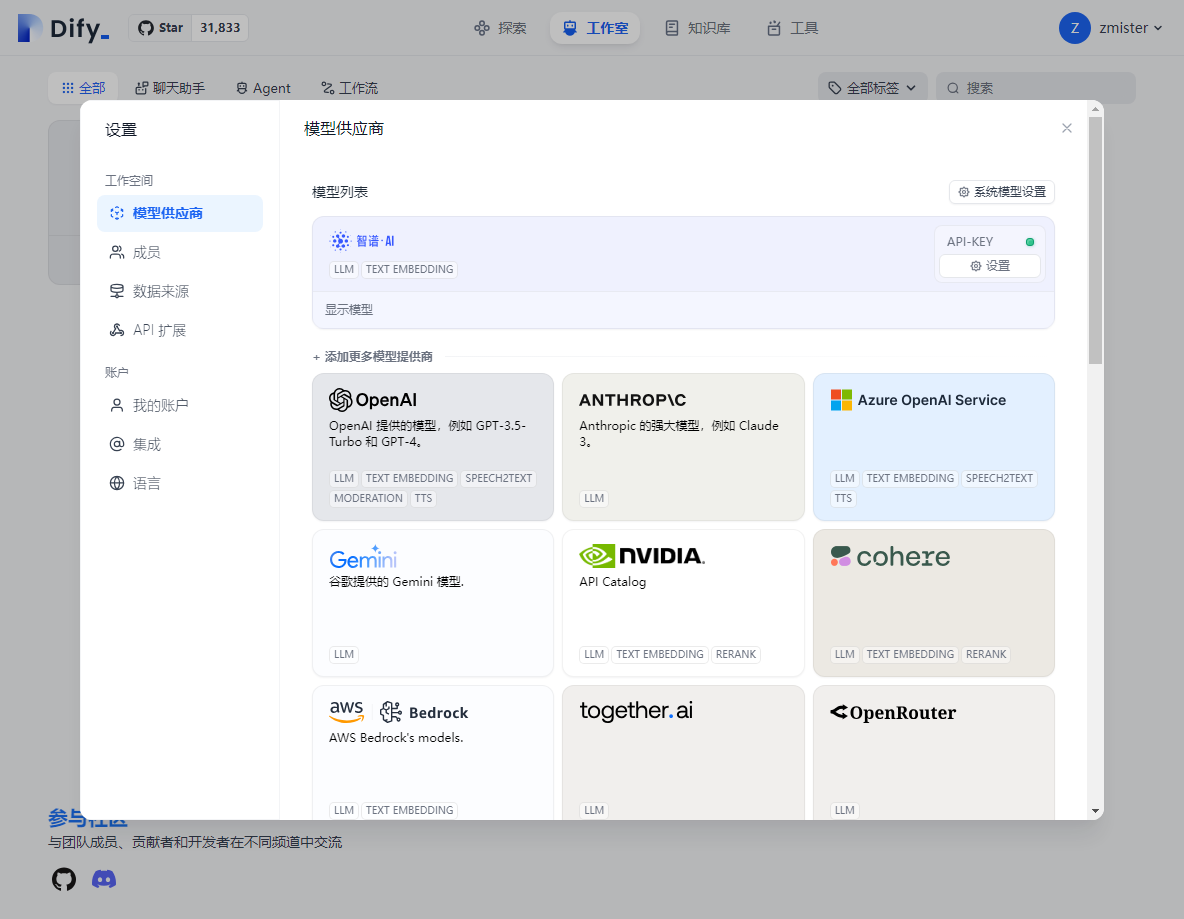 ### Create a Blank Knowledge Base >d The purpose of the Dify Knowledge Base is to enable Dify applications to retrieve content from the knowledge base during chats and then answer based on the retrieved content. If you do not need the large language model integrated with Dify to perform Q&A based on a specific knowledge base, you can skip this step. After deploying Dify, under the "Knowledge Base" section in Dify, click "Create Knowledge Base": 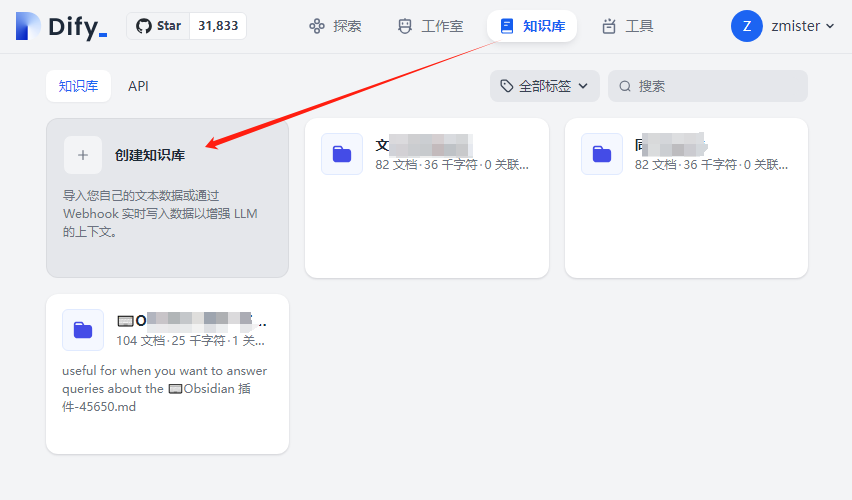 You can choose to upload your local knowledge base files or "Create an Empty Knowledge Base". MrDoc recommends creating an empty knowledge base specifically for storing data from MrDoc. 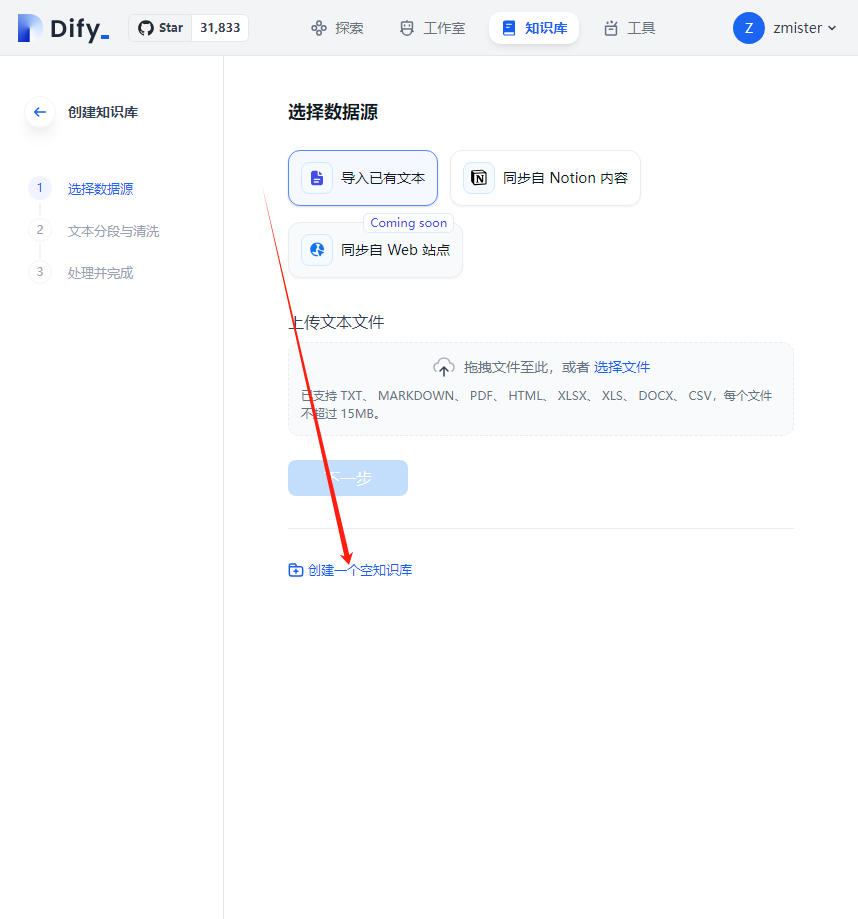 Click "Create an Empty Knowledge Base", enter the name of the knowledge base to create it: 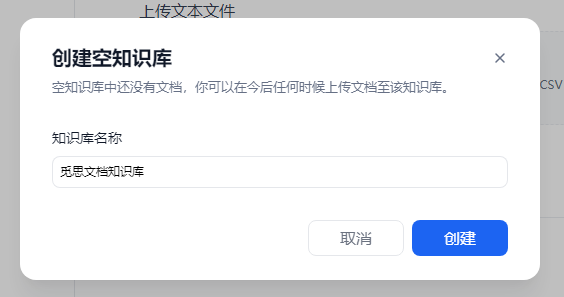 This completes the creation of a Dify knowledge base. #### Obtain Knowledge Base API Key In the "API" section of the Dify Knowledge Base page, obtain the knowledge base API key for later use:  ### Create an Application Dify supports creating different types of applications for various usage scenarios, such as: Chat Assistants, Text Generation Applications, Agents, Conversation Flows, Workflows, etc. Detailed differences can be found in the documentation: https://docs.dify.ai/zh-hans/guides/application-orchestrate/readme#%E5%BA%94%E7%94%A8%E7%B1%BB%E5%9E%8B The application APIs actually used by MrDoc include the "Conversation API" and "Text Generation API". You can create corresponding types of applications as needed to obtain their application APIs. On the Dify Studio page, click "Create Blank Application", select "Chat Assistant" and "Basic Orchestration":  After creating the application, click to enter the application settings page. In the upper right corner, select a model for your application: 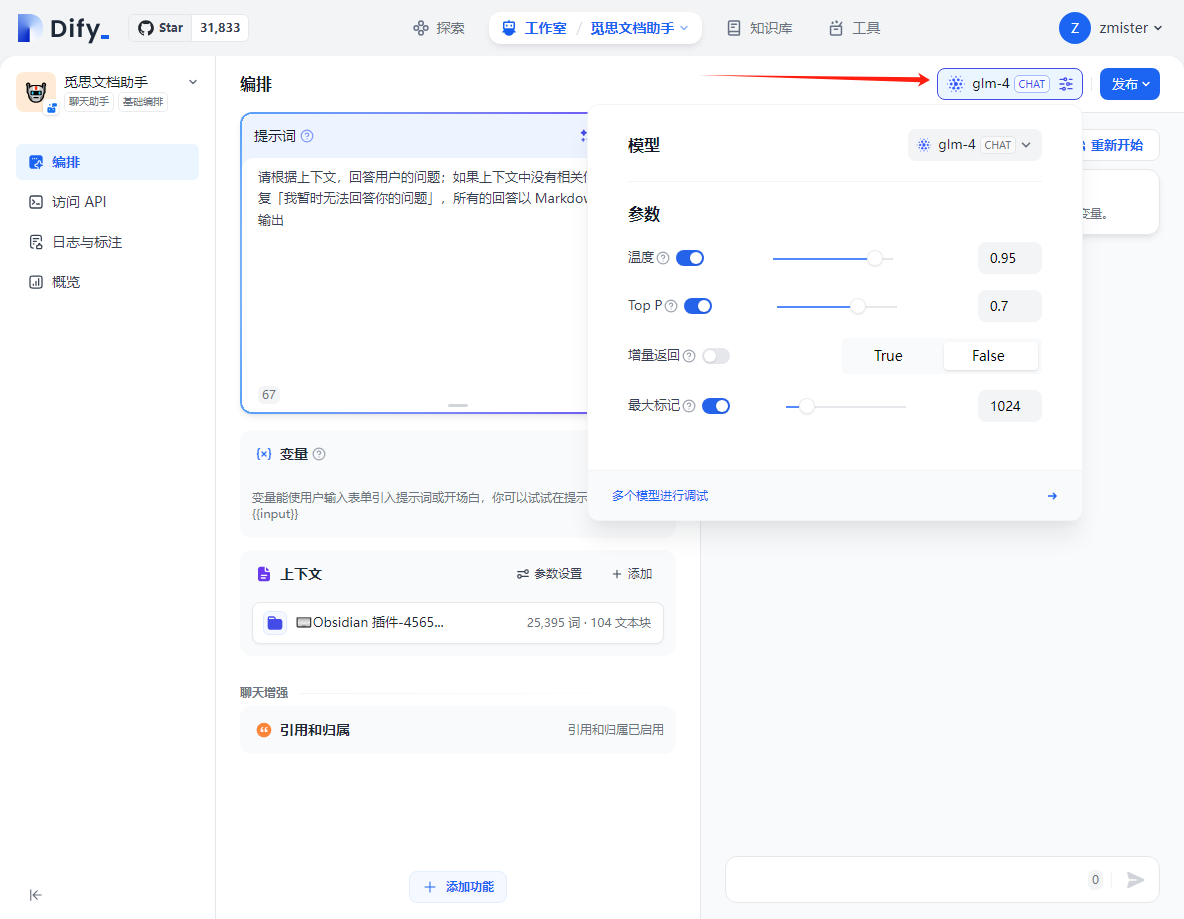 Write the prompt according to your actual needs, for example: ``` Please answer the user's question based on the context; if there is no relevant information in the context, please reply "I am temporarily unable to answer your question". All answers should be output in Markdown style. ``` In the context, add the created knowledge base as the application's context. Finally, publish the application. ### Obtain Application Embed Code for Website Click the "Publish" button, and select "Embed in Website" from the dropdown menu: 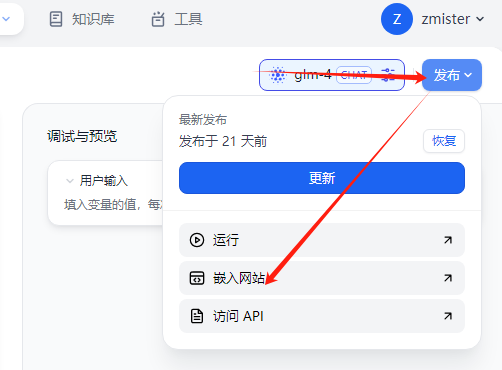 In the pop-up dialog, select the second type and copy its code for later use.  ### Obtain Application API Key Within the application, select "Access API", click "API Keys" to create an application API key for later use: 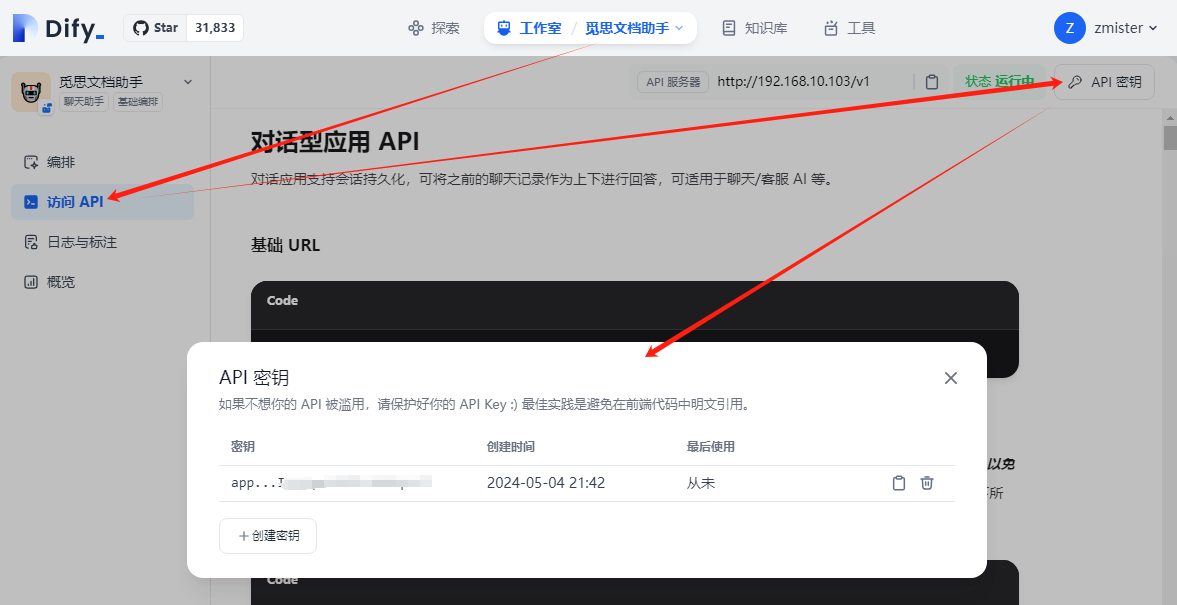 ## Configure MrDoc 1. In the "Basic Configuration" section of the backend management "AI Integration" page, select "Dify" as the AI Framework. 2. In the "Dify Configuration" section of the backend management "AI Integration" page, fill in the Dify "API Address", "Conversation API Key", "Knowledge Base API Key", and "Text Generation API Key". 3. Click "Read Dify Knowledge Base" and select the Dify knowledge base you want to bind. 4. If the "Chat Dialog" is enabled in the "Basic Configuration", fill in the "Embed Code" field in the "Dify Configuration" with the "Embed Website Code" from the Dify application.
mrdoc
Nov. 18, 2025, 4:19 p.m.
Forward
Favorites
Last
Next
Scan the QR Code
Copy link
Scan the QR code to share.
Copy link
Markdown file
Word document
PDF document
PDF document (print)
share
link
type
password
Update password
Validity period