MrDoc User Manual
🎊 Basic Concepts
📑 Collection Feature
Document Sorting (Drag & Drop)
Document Watermark
Collection Permissions
Export as PDF / EPUB / Word
Collaboration & Members
Collection Info & Settings
Export Collection
Document Access Log
Pin Collection
Disable Document Copying
Transfer Collection
Collection Sharing
Enable Document Comments
WebHook Delivery
Hide Collection on Homepage
Collection Association Set
Tabs Configuration
Content Table Sorting
📄 Document Features
Subdocument Control
Sort Documents
Set Document Level
Document Sharing
Copy / Move Document
Document Permissions
Document Versions
Document Download
Export Markdown
Export as PDF
Export as Excel
Document Attachments
Transfer Document
Directory Display
Create Shortcut
Insert Video
Document Tags
Auto-Save
🗄️ Asset Management
Upload Size Limit
Allowed Image Formats
Allowed Attachment Formats
Attachment Preview
Transfer Attachments / Images
Image Cleanup
🎯 Import and Export
Desktop Import
Import from Joplin
Import from Evernote
Web Import
CLI Import
🔑 Third-Party Login
DingTalk Login
WeChat Work Auth
LDAP Integration
OIDC Integration
WeChat OAuth
📦 Third-Party Storage
MinIO
Qiniu OSS
Aliyun OSS
AWS S3
🤖AI Integration
Basic Configuration
Dify Integration
📝OnlyOffice Integration
📊 Drawio Integration
⚓ Site Management
Site Info
Homepage Template
Users & Accounts
Tracking Code
Ads / Info Block / Custom Head
Disable Update Check
Search Mode
Image Thumbnails in Docs
Feedback
RSS
Single Tag Settings
Email Sender
Site Data Export
Editor Settings
🧑 Personal Account
Default Editor
User Nickname
Change Password
Bind Third-Party Account
🎈 User Token API
Get User Token
List Collections
Get Collection Catalog
Get Collection Documents
Get Personal Documents
Get Document Content
Create Collection
Create Document
Update Document
Upload Image
Verify Token
🖥️ Client
💻 Desktop
📱 Mobile
🌐 Browser Extension
⌨️Obsidian Plugins
Common Issues Index
Powered by MrDoc Pro
-
+
home
WeChat Work Auth
MrDoc Professional supports **Scan Code Login** integration and **Direct Login Configuration** for WeCom (WeChat Work) "Internal Enterprise Applications". ## I. Creating a WeCom Application Log in to the WeCom management backend, navigate to the "Application Management" page. 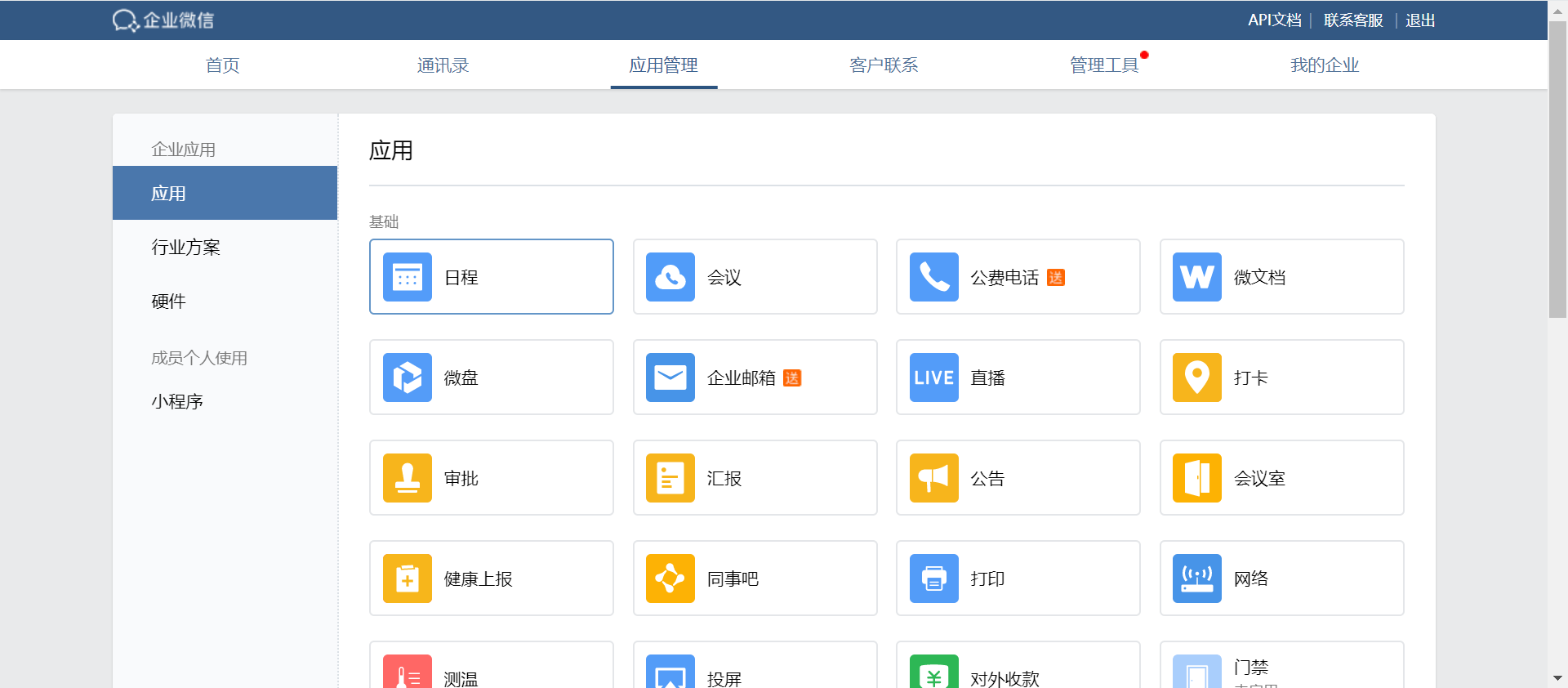 Scroll to the bottom of the page, and under the "Self-built" category, click "Create Application":  Fill in the required information as prompted: 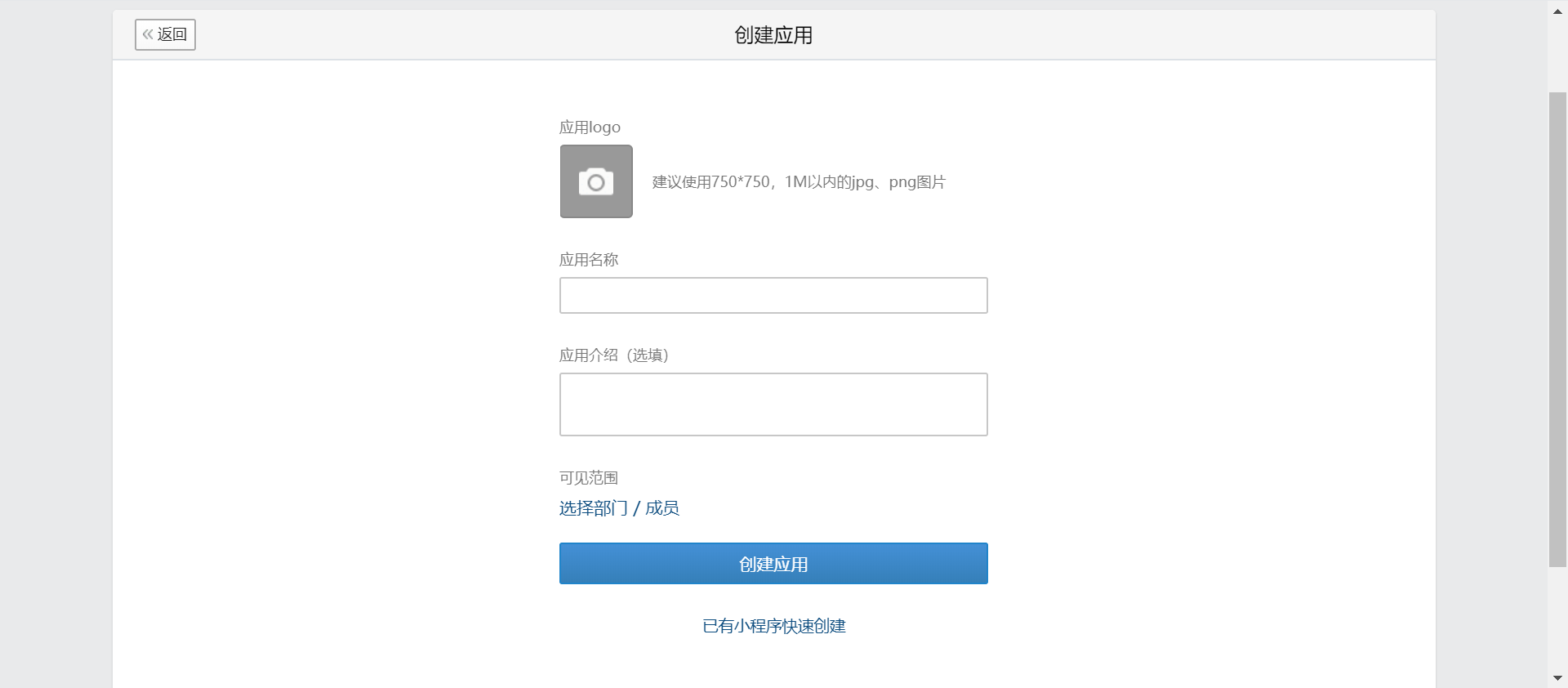 After the application is created, you will be directed to the application management page: 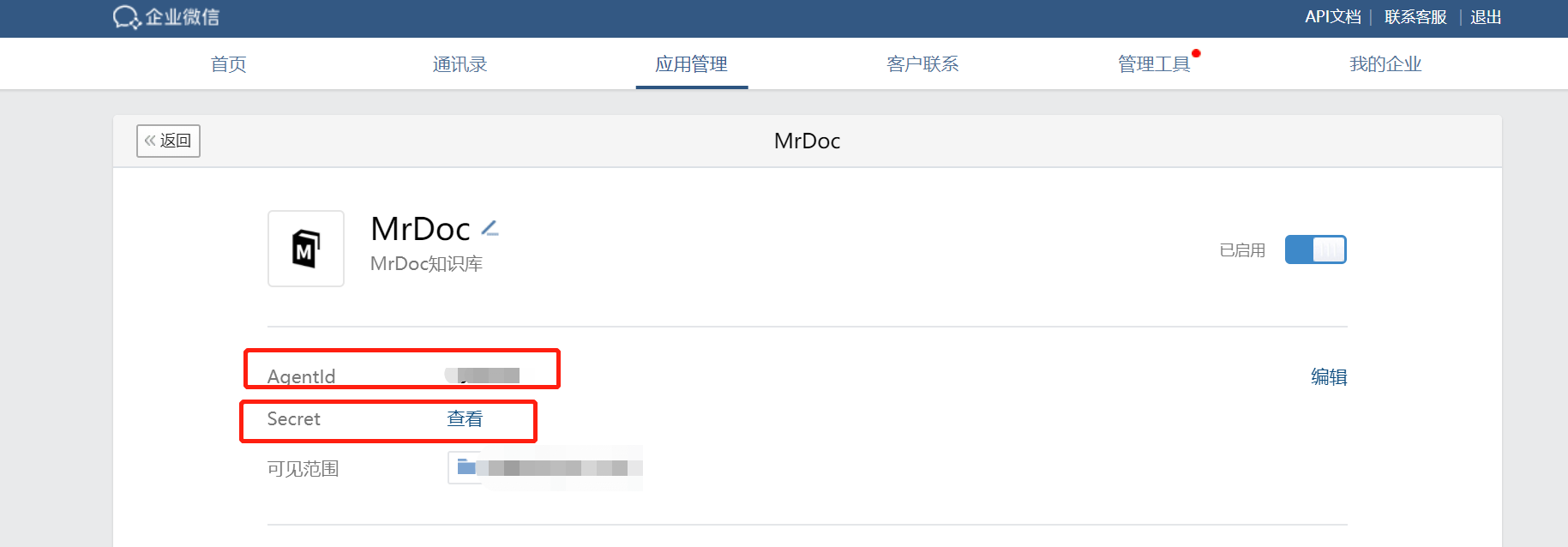 Copy the "AgentId" and "Secret" information for later configuration use. ## II. Configuring the WeCom Application ### Trusted Domain Verification After downloading the domain verification file, you can configure domain verification using Nginx or configure it within MrDoc. Refer to the documentation: [https://doc.mrdoc.pro/doc/3990/#h2-configuring-text-file-access](https://doc.mrdoc.pro/doc/3990/#h2-configuring-text-file-access) ### Application Homepage Configuration Click to set the "Application Homepage":  Enter the webpage URL as follows: ``` https://open.weixin.qq.com/connect/oauth2/authorize?appid={CorpID}&redirect_uri={Domain}/oauth/wechatwork_callback/&response_type=code&scope=snsapi_base&state=STATE#wechat_redirect ``` 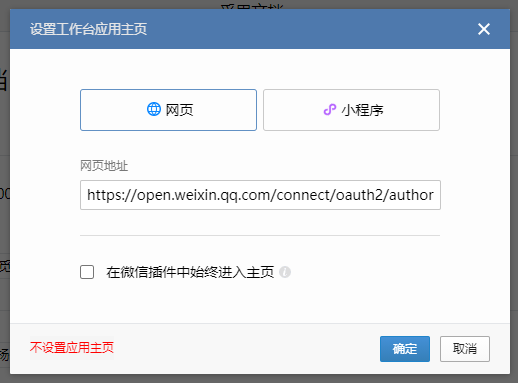 For example, if the CorpID is `123456` and the domain is `http://mrdoc.com`, the application homepage address would be as follows: ``` https://open.weixin.qq.com/connect/oauth2/authorize?appid=123456&redirect_uri=http://mrdoc.com/oauth/wechatwork_callback/&response_type=code&scope=snsapi_base&state=STATE#wechat_redirect ``` ### Enterprise Trusted IP Configuration Configure the enterprise trusted IP as your server's IP address. 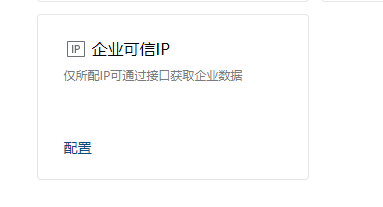 ### Web Authorization and JS-SDK Configuration Under "Web Authorization and JS-SDK", click "Set Trusted Domain". 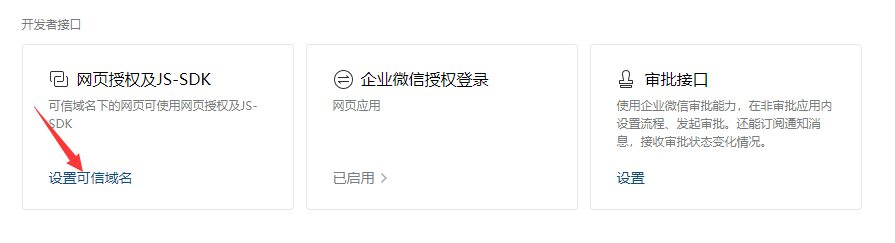 Enter your MrDoc domain address: 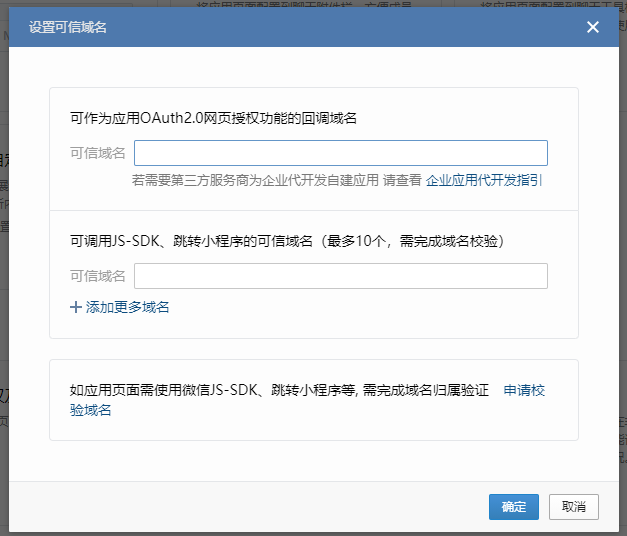 ### WeCom Authorization Login Configuration Scroll to the bottom of the page, and under "Developer Interfaces", configure "WeCom Authorization Login": 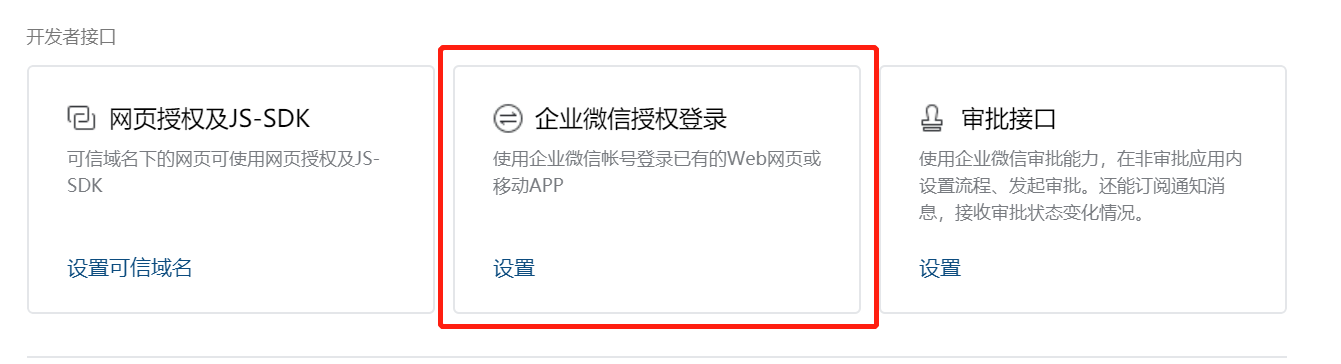 On the settings page, under "Web Pages", click Edit and enter the domain name or IP address where your MrDoc Professional application is deployed. 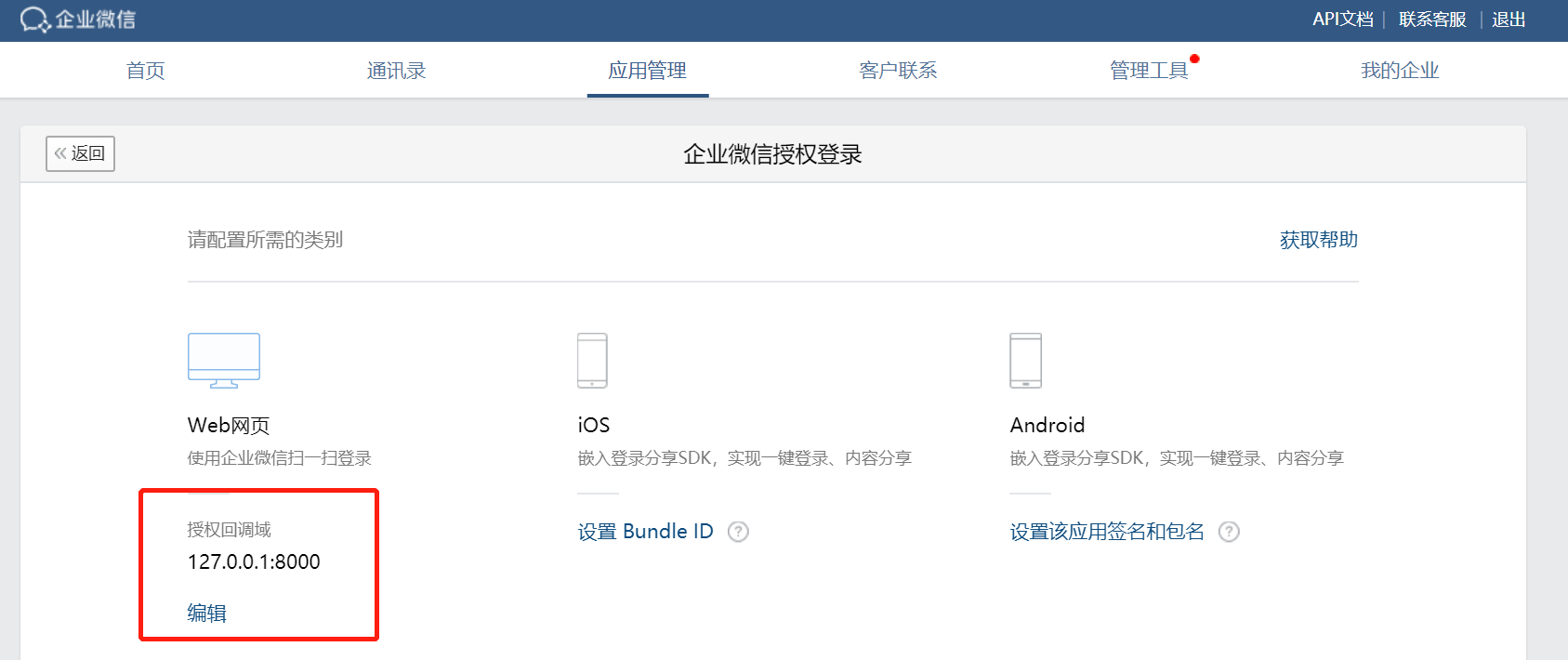 Click Save. ## III. Configuring MrDoc Log in to MrDoc Professional as an administrator, go to the "Site Management" section, and navigate to the "Third-party Login" page: 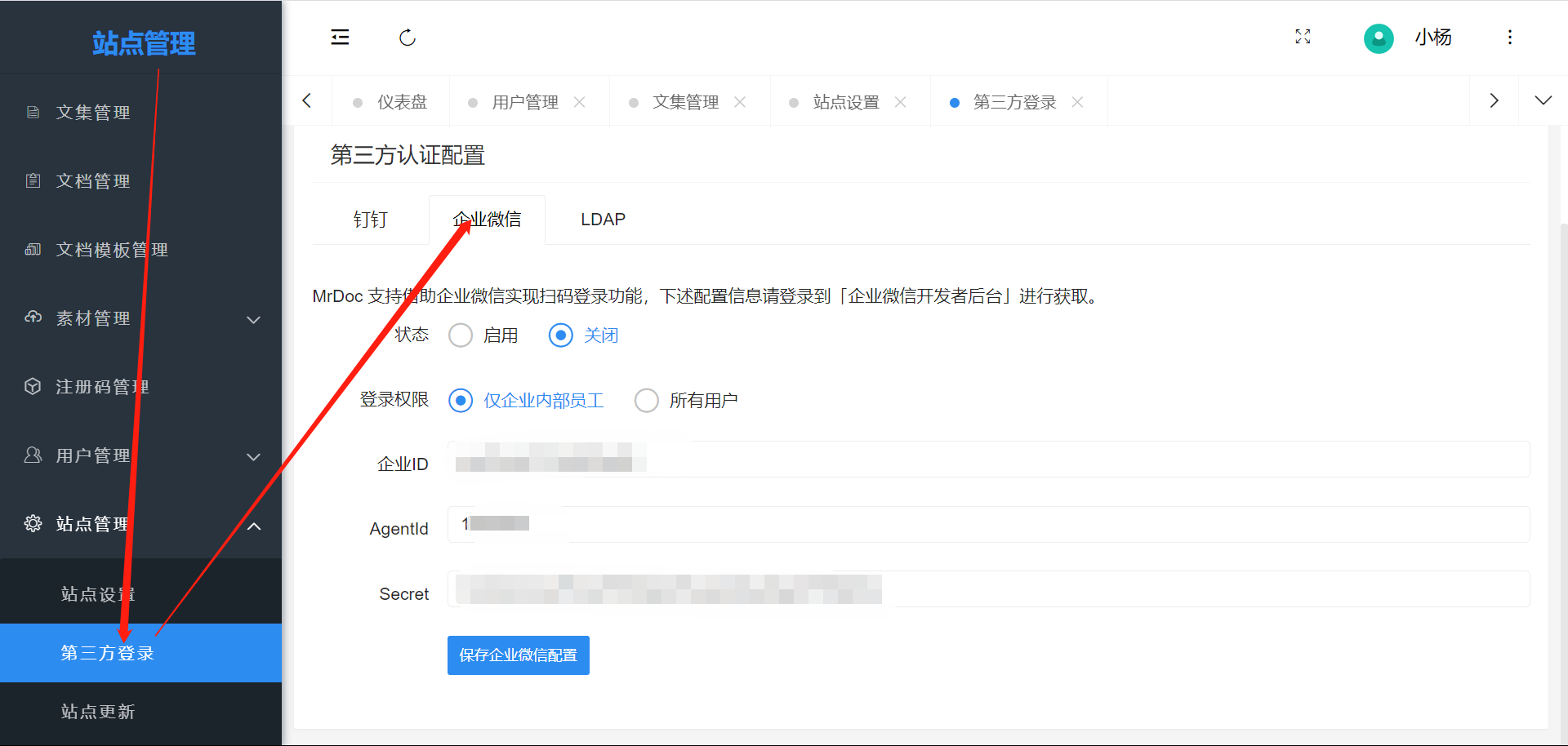 In the "WeCom" tab, select "Enable", and fill in the "AgentId" and "Secret" from the WeCom application into the corresponding form fields. As for the "CorpID", you need to obtain it from the "My Enterprise" page in the WeCom management backend: 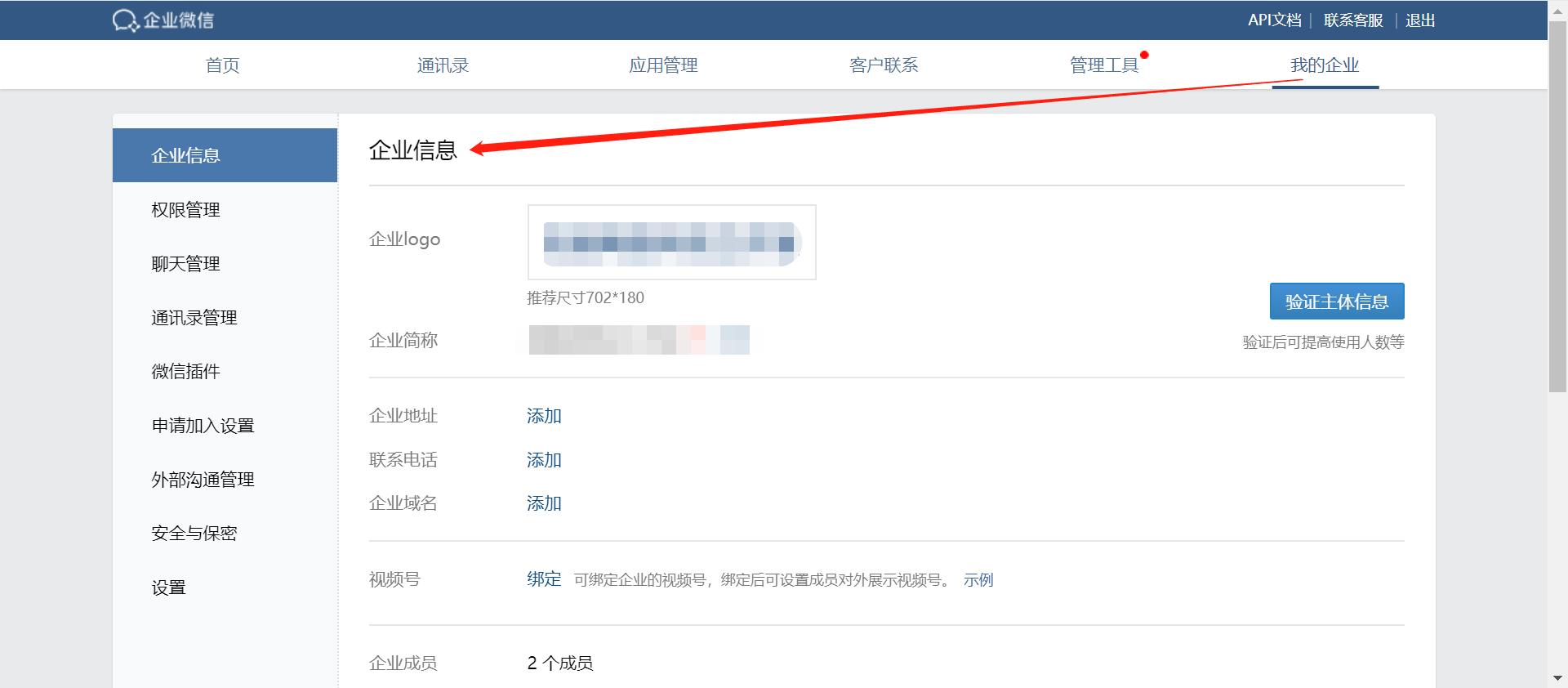 Scroll to the bottom of the enterprise information page to find the "CorpID". 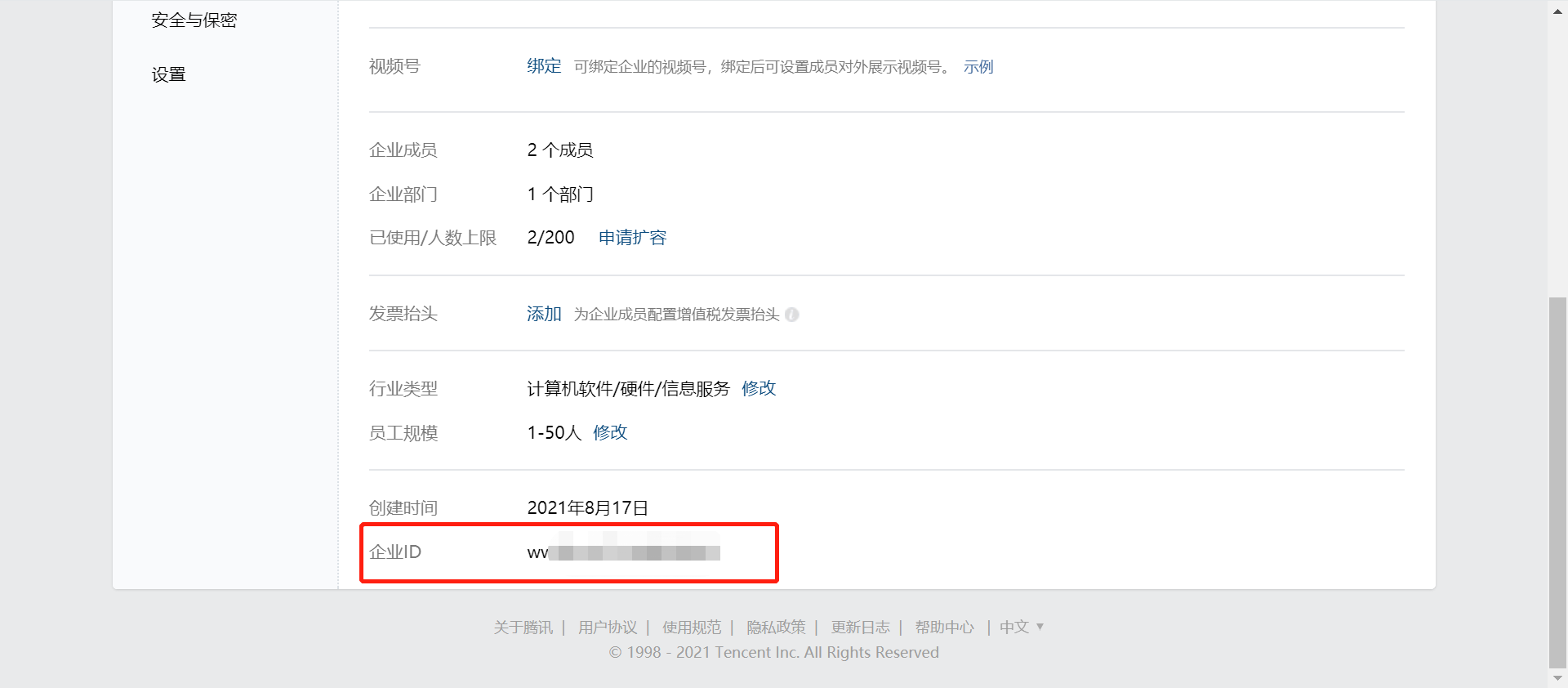 Copy and paste it into the corresponding field in the MrDoc Professional configuration form. Finally, click Save to complete the configuration of WeCom Scan Code Login for MrDoc Professional. ## IV. Scan Code Login After enabling WeCom Scan Code Login, the WeCom icon will appear on the MrDoc Professional login page. 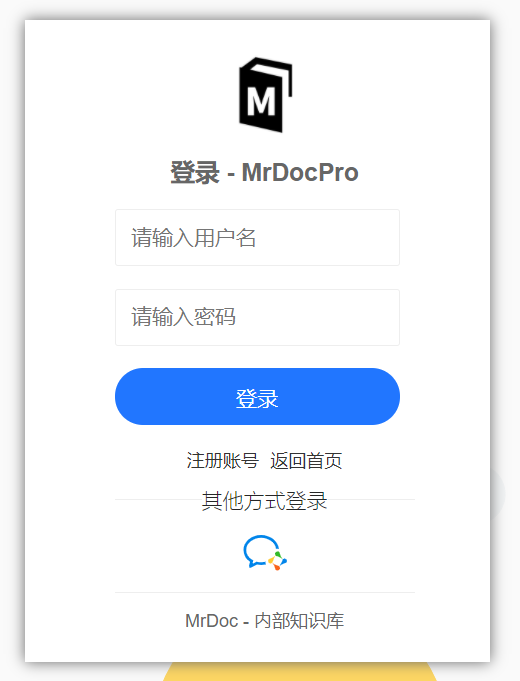 Clicking the WeCom icon will redirect to the WeCom scan code interface. After scanning the QR code with your phone and confirming login, authentication will be successful. ## V. Direct Login After completing the above configuration, clicking the created application from the application list in the WeCom Workbench allows direct login access to MrDoc without re-authentication. ## VI. Other Configurations ### Syncing WeCom Members to MrDoc You can batch sync WeCom members to MrDoc within the configuration page for WeCom authentication integration. Currently, the following three synchronization methods are supported: - Import WeCom users as MrDoc users. - Import WeCom users as MrDoc users, import the departments the WeCom users belong to as MrDoc user groups, and add the users to these groups. - Clean up WeCom users within MrDoc; users not present in WeCom will be set to "Disabled" status. ### Binding WeCom Account to MrDoc Account If you log in directly via WeCom, a new account will be created within the MrDoc account system. Alternatively, you can bind your WeCom account to an existing MrDoc account. Operation method: Go to the Personal Center page, click "Personal Management" menu, select "Personal Settings", switch to the "Third-party Accounts" tab, click "Bind WeCom Account", and proceed with the configuration.
mrdoc
Nov. 18, 2025, 4:16 p.m.
Forward
Favorites
Last
Next
Scan the QR Code
Copy link
Scan the QR code to share.
Copy link
Markdown file
Word document
PDF document
PDF document (print)
share
link
type
password
Update password
Validity period