MrDoc User Manual
🎊 Basic Concepts
📑 Collection Feature
Document Sorting (Drag & Drop)
Document Watermark
Collection Permissions
Export as PDF / EPUB / Word
Collaboration & Members
Collection Info & Settings
Export Collection
Document Access Log
Pin Collection
Disable Document Copying
Transfer Collection
Collection Sharing
Enable Document Comments
WebHook Delivery
Hide Collection on Homepage
Collection Association Set
Tabs Configuration
Content Table Sorting
📄 Document Features
Subdocument Control
Sort Documents
Set Document Level
Document Sharing
Copy / Move Document
Document Permissions
Document Versions
Document Download
Export Markdown
Export as PDF
Export as Excel
Document Attachments
Transfer Document
Directory Display
Create Shortcut
Insert Video
Document Tags
Auto-Save
🗄️ Asset Management
Upload Size Limit
Allowed Image Formats
Allowed Attachment Formats
Attachment Preview
Transfer Attachments / Images
Image Cleanup
🎯 Import and Export
Desktop Import
Import from Joplin
Import from Evernote
Web Import
CLI Import
🔑 Third-Party Login
DingTalk Login
WeChat Work Auth
LDAP Integration
OIDC Integration
WeChat OAuth
📦 Third-Party Storage
MinIO
Qiniu OSS
Aliyun OSS
AWS S3
🤖AI Integration
Basic Configuration
Dify Integration
📝OnlyOffice Integration
📊 Drawio Integration
⚓ Site Management
Site Info
Homepage Template
Users & Accounts
Tracking Code
Ads / Info Block / Custom Head
Disable Update Check
Search Mode
Image Thumbnails in Docs
Feedback
RSS
Single Tag Settings
Email Sender
Site Data Export
Editor Settings
🧑 Personal Account
Default Editor
User Nickname
Change Password
Bind Third-Party Account
🎈 User Token API
Get User Token
List Collections
Get Collection Catalog
Get Collection Documents
Get Personal Documents
Get Document Content
Create Collection
Create Document
Update Document
Upload Image
Verify Token
🖥️ Client
💻 Desktop
📱 Mobile
🌐 Browser Extension
⌨️Obsidian Plugins
Common Issues Index
Powered by MrDoc Pro
-
+
home
⌨️Obsidian Plugins
Mrdoc provides an Obsidian plugin — "Obsidian Mrdoc Plugin" — to enable synchronization between Obsidian documents and Mrdoc. - Offers Obsidian users a new solution for remote synchronization of local documents. - Provides a new solution for web-based online browsing of Obsidian local documents. - Offers Mrdoc users a new solution for offline writing, saving, and synchronizing documents. ## System Requirements - Mrdoc Professional Edition `v1.3.6+`, Mrdoc Open Source Edition `v0.9.2+` - Obsidian `v1.4.16` ## Correspondence of Basic Concepts - Obsidian's "Vault" corresponds to Mrdoc's "Collection." - "Markdown files" within an Obsidian vault correspond to "Documents" in Mrdoc. - "Folders" within an Obsidian vault correspond to "Documents" containing sub-documents in Mrdoc. ## Plugin Rules ### Vault In Obsidian, you need to select the target Mrdoc collection in the plugin settings page. > If you wish to synchronize documents to a new Mrdoc collection, click the "New" button to create one and then select it. ### Pull Remote Documents The plugin adds a functional icon button to the left toolbar for pulling all documents from a Mrdoc collection to the local Obsidian vault. After clicking the pull operation, the plugin retrieves all document information from the specified collection and prepares to write it to the local Obsidian vault. - If a file/folder with the same name does not exist locally, a new file/folder is created. - If a file with the same name exists locally, check whether there is a mapping relationship between the local file and the remote document: - If a mapping relationship exists, compare the last modified time of the local file and the remote document: - If the local file's last modified time is newer than the remote document, skip. - If the local file's last modified time is older than the remote document, overwrite the local file with the remote document's content. - If no mapping relationship exists, skip. - If a folder with the same name exists locally, skip. ### Create File/Folder Creating a new file/folder locally in Obsidian will automatically create a corresponding document in the specified Mrdoc collection and maintain a mapping relationship between the local document and the remote document within the plugin. ### Rename File/Folder Renaming a file/folder locally in Obsidian will automatically update the corresponding document title in Mrdoc. ### Move File Hierarchy Moving a file to a different folder locally in Obsidian will automatically update the parent document of the corresponding document in Mrdoc. ### Modify File After modifying the file content, you can click the "Sync to MrDoc" menu in the "More Options" at the top right of the editor to push the document updates to Mrdoc. You can also hover over a specific document in the file list on the left side of the Obsidian software, right-click to bring up the context menu, and then click the "Sync to MrDoc" menu to push the document updates to Mrdoc. Additionally, the plugin provides a **real-time push** option. You can enable "Real-time document content updates" in the plugin settings page. This way, when you modify a file in Obsidian, the plugin will update the latest file content to Mrdoc in real time. ### Delete File/Folder If a mapping relationship exists between a local file/folder in Obsidian and a Mrdoc document, deleting the file/folder locally will also synchronize the deletion in Mrdoc (soft delete, the document will be moved to the recycle bin). ### Image Handling The plugin provides two options for image handling: - Save local images - Save images from the clipboard **1. Save Local Images** When you paste or drag a local image into the Obsidian editor, the plugin will upload the image to Mrdoc, then return the Mrdoc image link address and insert it into the Obsidian editor. **2. Save Images from the Clipboard** When you copy text from elsewhere and paste it into the Obsidian editor, the plugin will extract any image links within the text, upload them to Mrdoc, and then replace the original image links in the text with the Mrdoc image links. ### Reset Mapping Relationship After a mapping relationship is established between a local Obsidian file and a Mrdoc document, if you need to unbind the mapping relationship, you can click "Reset Document Mapping" in the plugin settings page. This way, operations on the local Obsidian file will not be synchronized to Mrdoc. ## Usage Tutorial ### Installation 1. Official Installation (The plugin has been submitted for official review) 2. Install via BRAT (Recommended) Open Settings → Third-party plugins → Browse → Search for "brat," download, install, and enable it. 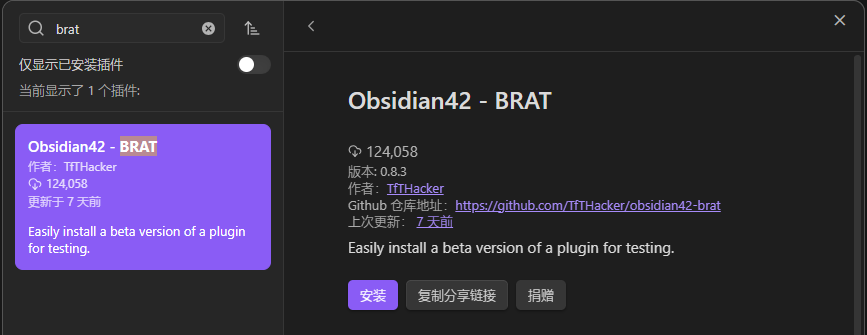 Open BRAT settings. 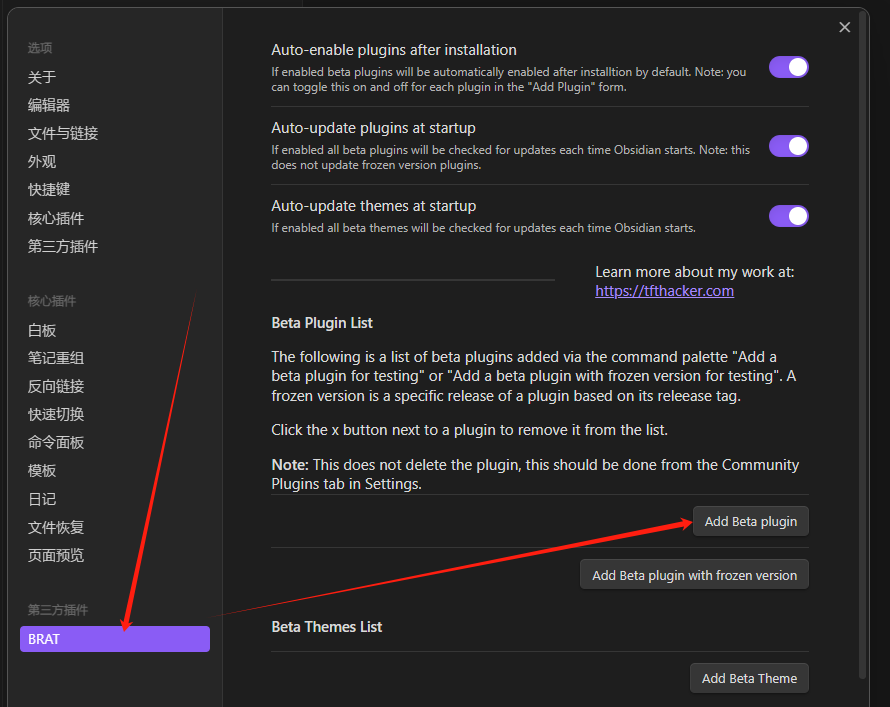 Click "Add Beta plugin," a pop-up will appear. Fill in the following URL: 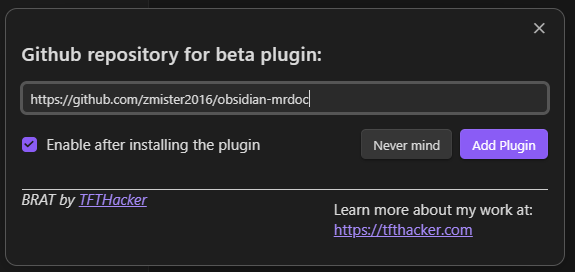 ```text https://github.com/zmister2016/obsidian-mrdoc ``` Click the `Add Plugin` button and wait for the installation. The following message indicates a successful installation: 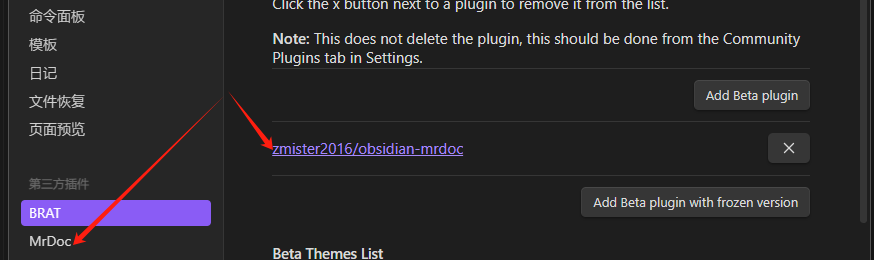 Before using this plugin, you need to perform some configurations. ### Configure Connection Information Go to the "MrDoc" plugin configuration page, fill in the "MrDoc URL" and "User Token" (obtained from: Personal Center → Personal Management → Token Management), and click the "Check" button to test the connection. 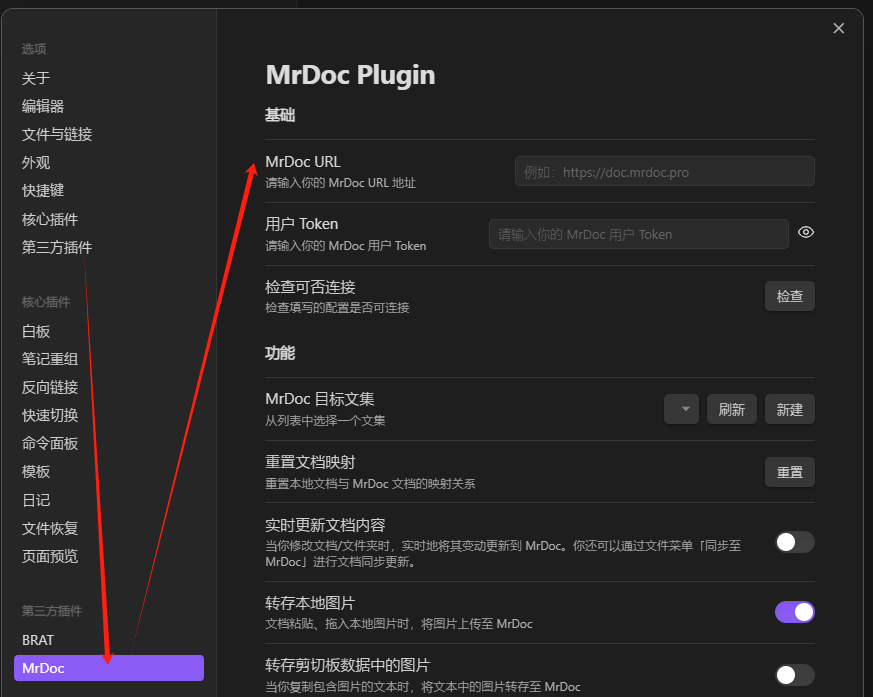 ### Specify Target Collection After successfully configuring the connection information, you need to specify a target Mrdoc collection to bind with the Obsidian vault. Click the "Refresh" button to retrieve your collection list, then select a collection from the list. 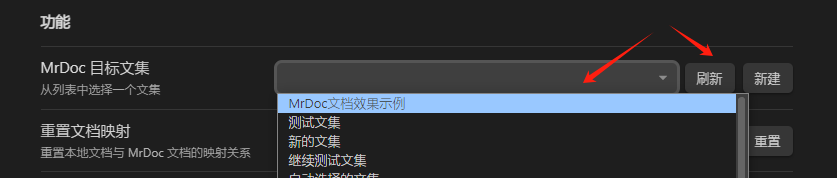 You can also click the "New" button to create a new blank collection, then select it from the collection list as the binding for the Obsidian vault. 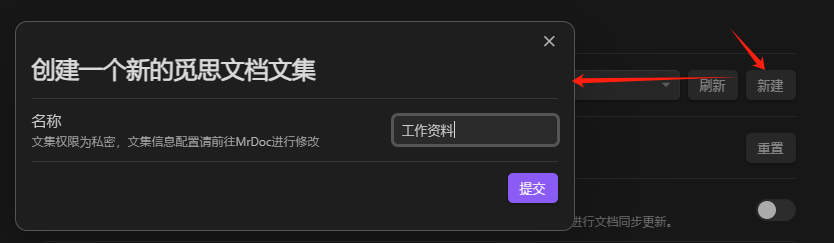 After completing the above two steps, creating, renaming, or moving documents in the Obsidian vault will synchronize with Mrdoc. ### Pull Documents If you have specified a Mrdoc collection but the local Obsidian vault is empty, you can pull the documents from the Mrdoc collection into the Obsidian vault. Click the button on the left sidebar of the Obsidian main interface, as shown: 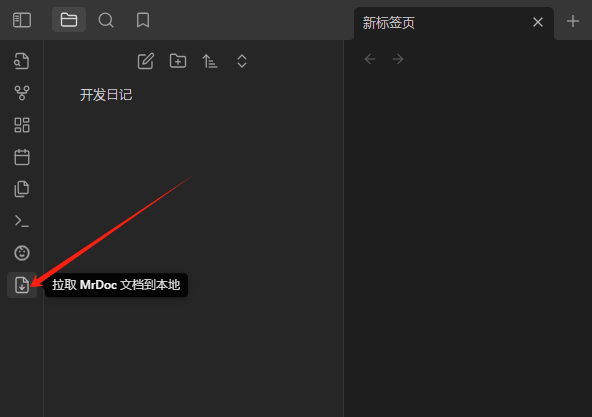 Click the "Confirm" button in the pop-up modal, and the plugin will pull the documents from the specified Mrdoc collection into Obsidian. 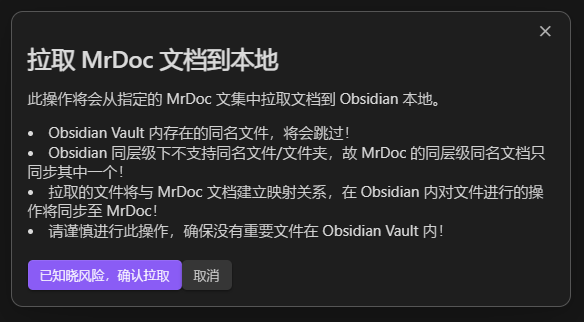 After the pull is complete, all newly created folders and documents will be displayed. 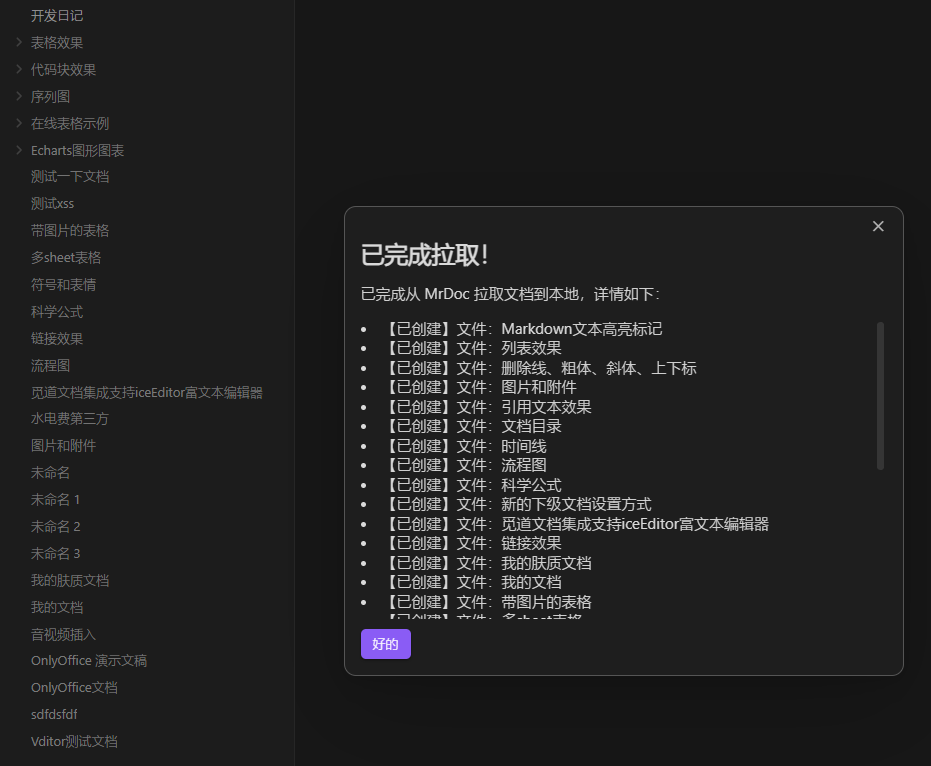 ### Synchronize Documents After modifying a document in Obsidian, you can synchronize the document content by clicking the "Sync to MrDoc" menu in the document menu. 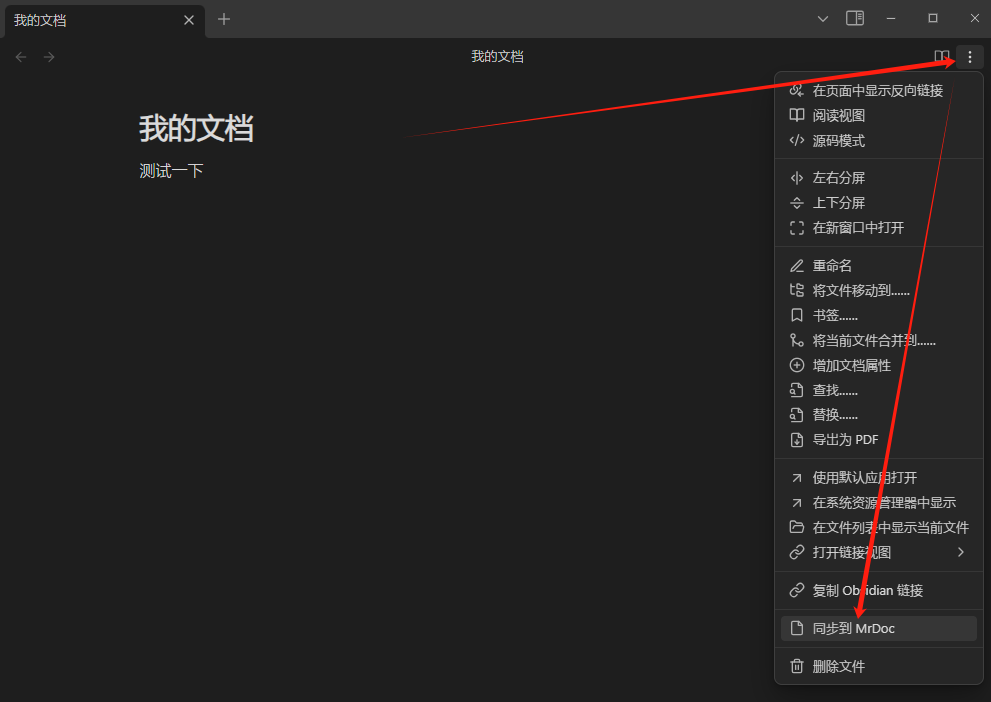 You can also right-click a specific file in the file list on the left side of the vault, bring up the context menu, and click the "Sync to MrDoc" menu to synchronize the document content. 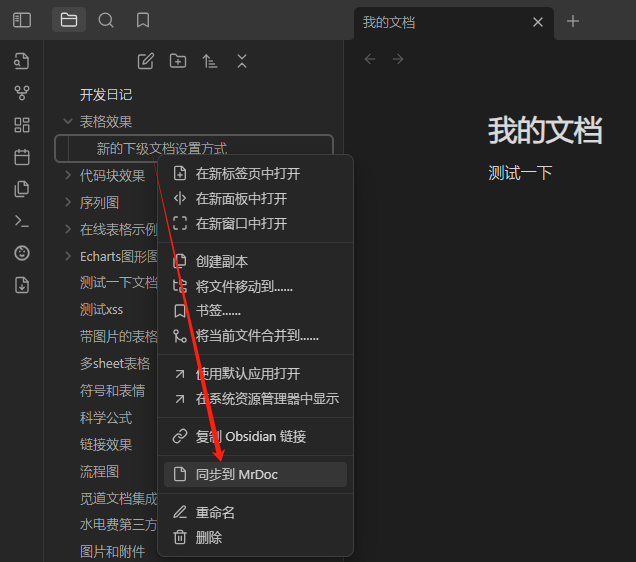 If you enable the "Real-time document content updates" switch in the plugin configuration page, after modifying the document content, the plugin will automatically synchronize your updates to Mrdoc without manual operation. 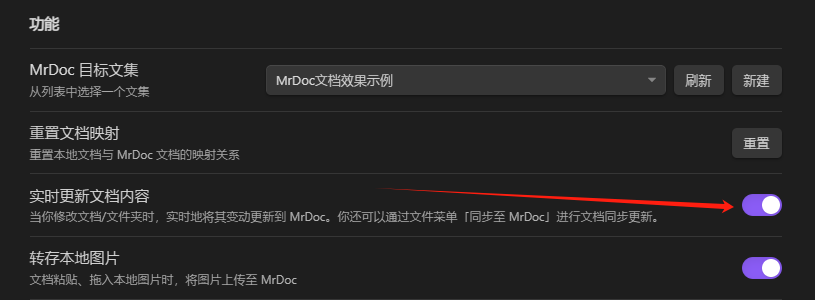  ### Save Local Images If your text content includes images, it is recommended to enable the "Save local images" switch in the plugin configuration. This will save images copied or dragged from your local device into the document editor to Mrdoc, and update the image links in the document to Mrdoc image links. This ensures that images display correctly whether you are browsing the document locally or online.  ### Save Images from Clipboard Data If you frequently copy content from elsewhere into documents in the Obsidian vault, it is recommended to enable the "Save images from clipboard data" switch in the plugin configuration. After enabling this switch, the plugin will extract image links from the clipboard text content, upload them to Mrdoc, and replace them with Mrdoc image links. 
mrdoc
Nov. 18, 2025, 3:22 p.m.
Forward
Favorites
Last
Next
Scan the QR Code
Copy link
Scan the QR code to share.
Copy link
Markdown file
Word document
PDF document
PDF document (print)
share
link
type
password
Update password
Validity period